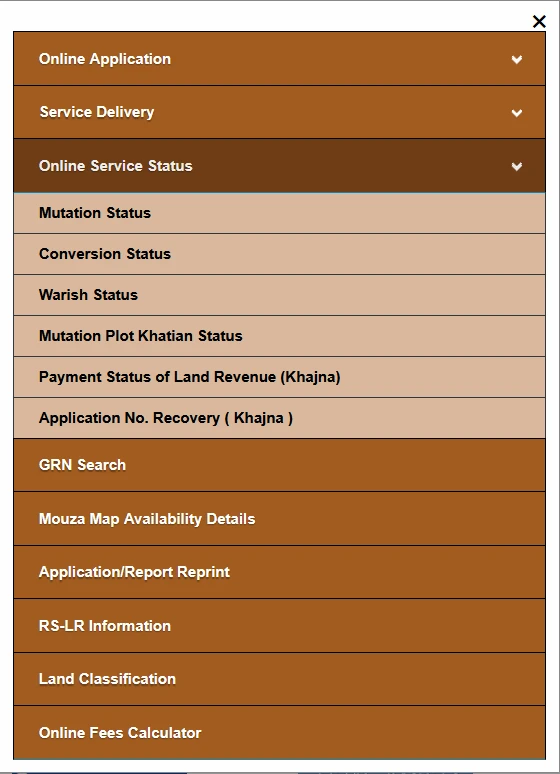
To check Banglarbhumi Mutation Status, open the official Banglarbhumi portal, sign in if prompted, and choose Citizen Services → Online Service Status → Mutation Status. Select the search method offered, enter the matching case or other reference details requested, complete the displayed verification and view the available result.
Use the official Banglarbhumi portal for the lookup. This independent guide explains how to prepare for the search and what to check next; it does not issue mutation decisions. For related services, see our Banglarbhumi land records guide.
Which mutation service do you need?
| Your task | Service to look for |
|---|---|
| Start a new record-update application | Mutation Application under Online Application |
| Follow a submitted mutation case | Mutation Status under Online Service Status |
| Look for a mutation-linked plot or Khatian enquiry | Mutation Plot Khatian Status, where applicable |
| View the available land-record entry | Know Your Property / Khatian and Plot Information |
| Check a payment or get another receipt | The relevant payment, GRN Search or reprint option |
Choose the service by the task, not just the word “mutation.” A case-status result, a payment receipt and a Khatian entry answer different questions.
Details to keep ready before checking
- The acknowledgment or receipt for the mutation application.
- The case or application reference exactly as issued, including any year or other parts.
- The land location from your papers: district, block and mouza, where requested.
- Deed details only if the available search method asks for them.
- Any notice, objection or earlier status message connected with the case.
The selected search method determines which fields are required. Do not assume that case number, deed number, application number and query number are interchangeable, or that all of them must be entered together.
How to check Banglarbhumi Mutation Status
- Open the official portal and complete sign-in if the current service asks you to.
- Open Citizen Services → Online Service Status → Mutation Status.
- Select a search method if the screen offers more than one. Use the method that matches your saved reference.
- Enter the requested details from the acknowledgment or relevant deed record. Check any location and year fields carefully.
- Complete the current CAPTCHA or other verification and select the view or submit button shown.
- Compare the returned reference and available applicant or property details with your papers before interpreting the result.
- Read the status together with any remarks, notice or next-action instructions. Save the available result or note its exact wording and the date you checked it.
What if Mutation Status opens a login screen?
In the captured session, selecting Mutation Status opened the Citizen login prompt. For a citizen account, select Citizens, enter your registered username and password, complete the displayed CAPTCHA and use Next. After signing in, reopen the Mutation Status service if necessary. The next screen determines which search options and fields are available.
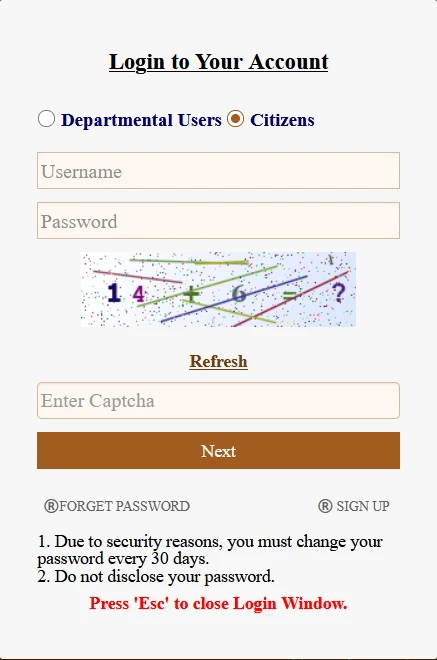
If you already have an account but cannot access it, use the official Forget Password option as appropriate. New users can use the official Sign Up option when they need an account and have the required details. Do not create another account simply because a status search did not load.
These screenshots demonstrate the menu and login prompt. They do not show a submitted case search or confirm the current fields after login. Follow the live form for the search method and required references.
Case-number search and deed-related search
If the form offers case-number search, use the case reference from the official acknowledgment and supply any additional fields requested. If a separate deed-related search is available, use the deed particulars requested by that form. Do not enter a case number into a deed-number field merely because the numbers look similar.
Where a method is not available on the live screen, use an offered alternative for which you have the correct details, or seek official assistance. This guide does not confirm every historical search option is currently available.
How to interpret a status result
The labels below are general examples, not a confirmed list of every message on the current portal. Read the actual wording, remarks and any linked order or notice for your case.
| If the result indicates… | What to check next |
|---|---|
| Pending or under process | Check for remarks, a document request, hearing details or another action required from you. |
| Further action or objection | Read the exact requirement and any deadline on the official notice; follow that case’s instructions. |
| Approved or disposed | Read the decision or order where available. Do not infer the outcome from a generic “disposed” label alone. |
| Rejected | Read the recorded reason and official instructions before deciding on any correction or further step. |
| No matching record | Recheck the search type, reference, year and location before drawing a conclusion about the case. |
A status label alone may not explain the full case history. Retain the official decision or notice where available, rather than relying only on a screenshot of a short label.
Pending or further action required: what to do
- Check whether the displayed remarks or notice require documents, a correction, attendance or another response.
- Use the reference and response instructions on that notice. Note any deadline rather than assuming a general processing period applies.
- If the status is unclear, contact the concerned land office with the case reference, acknowledgment and the exact message you saw.
- Keep a record of the date checked and any official response so you can explain what has changed at the next follow-up.
Do not assume that every pending case has the same cause or that it will finish within a fixed number of days. A stated notice period is not, by itself, a completion guarantee.
Rejected or decided: read the official reason first
If the result indicates rejection, check the reason or decision provided for your case. Do not automatically submit another application: the appropriate next step depends on the official order and instructions. Seek clarification from the concerned office if the result is incomplete or unclear.
If approval is shown, save the available order or acknowledgment and check the corresponding land-record details through our Khatian and Plot Information guide. If the entries do not match the decision, raise the discrepancy with the relevant case and record references.
Mutation Plot Khatian Status and related records
The official menu lists Mutation Plot Khatian Status separately from Mutation Status. Select the service relevant to your enquiry and follow its own fields; do not assume the two screens use the same references or display the same information.
If your papers contain different old and current plot references, the separate RS–LR plot information guide can help you identify the appropriate reference lookup. Keep the location and both references together when explaining a mismatch.
Common problems and useful checks
| Problem | What to do |
|---|---|
| No record found | Match the chosen search type and reference to the original acknowledgment. Recheck year and location wherever requested. |
| CAPTCHA error | Use the newly displayed code; refresh the challenge if it is unreadable. |
| Expired session or old link | Reopen the service from the official homepage rather than repeatedly submitting an old form. |
| Portal does not load | Retry later. A connection failure does not establish that your application was rejected or lost. |
| Missing application copy | Look through saved acknowledgments, then use the relevant reprint service where available. |
| Payment issue instead of case-status issue | Follow the matching payment or GRN service, not just the mutation case-status screen. |
For payment follow-up, use our GRN Search guide. For another application copy or receipt, see Application / Receipt Reprint. A successful payment does not by itself confirm a mutation decision.
What to save for a follow-up enquiry
- Application/case reference and the original acknowledgment.
- Search method and any location/year details used.
- Exact status message and available remarks.
- Date you checked the result.
- Relevant order, notice or document request, where provided.
Share case documents only through the appropriate official enquiry channel. Hide personal details before sharing any screenshot publicly.
Frequently asked questions
Banglarbhumi Mutation Status is an online tracking service used to check the current status of a land mutation application in West Bengal.
You can check it by visiting the Banglarbhumi portal, opening the Mutation Status option under Online Service Status or Citizen Services, entering the required details, completing the captcha, and submitting the form.
You may need details such as case number, application number, deed number, district, block, mouza, year, or other reference information depending on the search option.
Pending means the land office received your mutation application, but officials still need to verify and process it. It may be waiting for document verification or official action.
If the portal rejects your mutation application, first check the reason shown on the screen. Then correct the issue, arrange the required documents, and follow the official process or contact the concerned land office.
Mutation Plot Khatian Status is a related option that helps users check mutation-linked plot and khatian update details where available on the Banglarbhumi portal.
Where the option is available, users may check mutation status using deed-related details such as deed number and year.
No. Mutation status shows the progress of a mutation application, while khatian information shows the available landholder record.
Yes, buyers can check mutation status as part of basic verification. However, they should also verify deed, khatian, plot, tax, and legal ownership records.
Online status is useful for tracking and reference. For legal use or official confirmation, users should rely on certified records or confirmation from the concerned department.
Official service reference
The official Banglarbhumi menu lists Mutation Status and Mutation Plot Khatian Status under Online Service Status. Follow the current service form and the official instructions for your case.
I have patta land which has been registered by me on 2016 but mutation is not published.
you should approach registration office,and ask information about mutation information
Mutation status site not open then how to know my mutation status
website is now running sir