To apply for land revenue (Khajna) payment on Banglarbhumi, sign in to the official portal and open Citizen Services → Online Application → Land Revenue (Khajna) Application. Complete the applicable applicant and land details, save the application number, review the demand and follow the official payment instructions. After paying, check the payment status and obtain the Revenue Receipt. If money has already been debited, verify the existing transaction before attempting another payment.
For an overview of property searches, applications and related services, see our Banglarbhumi land records guide.
Which Banglarbhumi Khajna service do you need?
| Your task | Option to look for under Citizen Services |
|---|---|
| Start an application | Online Application → Land Revenue (Khajna) Application |
| Find the payment entry | Online Application → Fees Payment, or the payment action offered for your application |
| Check a payment | Online Service Status → Payment Status of Land Revenue (Khajna) |
| Recover a lost application number | Online Service Status → Application No. Recovery (Khajna) |
| Retrieve a Revenue Receipt | Application/Report Reprint → Revenue Receipt, where available |
| Check a GRN-linked transaction | GRN Search, using the appropriate request type and references |
Khajna is land revenue. It is different from municipal property tax and from stamp duty or registration fees for a transaction. A Khajna application or payment does not itself update ownership records, complete mutation or establish title.
Details to keep ready before applying
Keep your District, Block, Mouza, relevant Khatian and plot references, applicant details and an accessible mobile number ready. If you have a previous Khajna receipt, keep it available to check the last payment period, receipt number and date. Read the current form to see which information and uploads apply to your case.
Check the record before entering it: our Khatian and Plot Information guide explains that separate lookup. Do not substitute a deed number or mutation case number for a Khatian or plot number.
The application includes applicant, revenue deposition, plot, family-member, unrecorded-property and previous-payment sections. Some options depend on earlier answers. Their presence does not mean that every field or property category applies to every applicant.
How to submit a Land Revenue (Khajna) Application
1. Open the official portal and sign in. Visit banglarbhumi.gov.in and use its citizen sign-in process. If registration is needed, use the official sign-up option and provide the details it requests. Never share your password or OTP with an informational website.
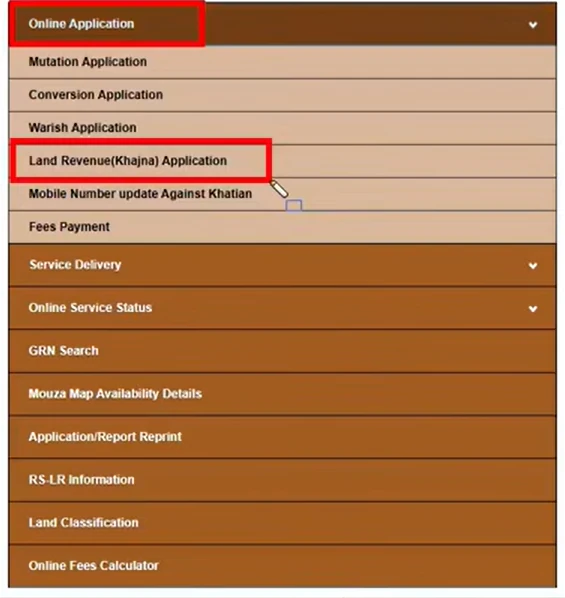
2. Open the Khajna application. Choose Citizen Services → Online Application → Land Revenue (Khajna) Application. The menu reference below shows where the application appears.
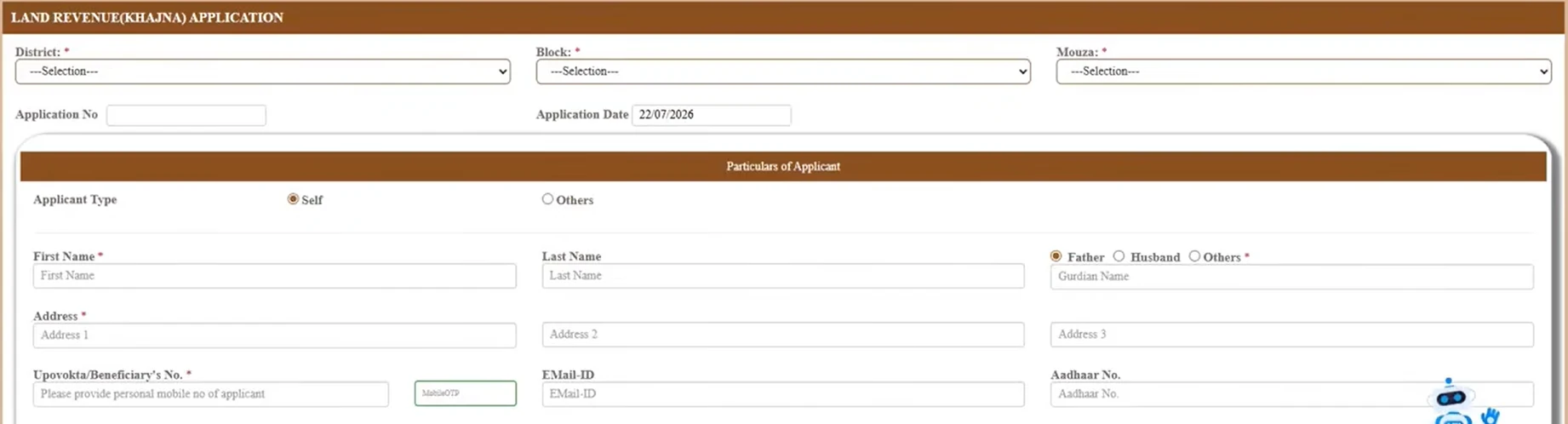
3. Select the location and enter applicant details. Choose District, Block and Mouza, then complete the applicable applicant fields. The applicant form shows Self/Others, name, guardian relationship, address, mobile verification and other details. Follow the required markers and validation messages on your actual form rather than assuming every displayed field is mandatory.
4. Add the relevant land details. In the revenue deposition section, answer the applicant/Khatian questions accurately. Choose the relevant record type only if you understand how it applies, enter the Khatian reference and follow the form’s lookup instructions. Check any retrieved details before selecting plots.
5. Review share, share area and land use. The form shows separate share and share-area fields and an Add Plot action. These values are not interchangeable. Use the record and the form’s stated units; enter the values supported by your record and select the correct classification. Check the resulting plot list for omissions and duplicates.
6. Complete applicable property and previous-payment sections. Add family-member or unrecorded-property information only where relevant and supported by your records. Select Self only for the applicable relationship and enter land details supported by your records. If previous-payment information is required, use the actual last receipt. “Bangla Son” refers to the Bengali year; do not enter a Gregorian year by assumption. Follow the current upload format and size limit.
7. Review, submit and save the reference. Check your answers and declaration, complete the current CAPTCHA and submit through the form. If submission succeeds, save the application number and any acknowledgement offered. An application number identifies the request; it is not proof that payment has succeeded.
Follow the official form’s required fields, validation messages and payment instructions for your application.
How to review and pay the Khajna demand
Open the payment action associated with your application or go to Citizen Services → Online Application → Fees Payment. Select the applicable Revenue (Khajna) request type if offered, enter the required application reference and complete the form’s verification. Follow the payment route presented by the official portal, including GRIPS where it redirects you.
| Before confirming | What to verify |
|---|---|
| Application | The reference belongs to the request you intend to pay. |
| Applicant and land | Name, location and Khatian/plot details match the relevant record. |
| Period and demand | Check the revenue period, previous payments and any arrears shown. |
| Amount | Read the displayed demand and any separately listed charges. Do not assume a fixed amount from another user’s example. |
| Payment method | Use a method actually offered by the official payment screen. |
Complete the authorised payment flow and follow any return-to-portal instruction. Save the application reference, GRN if issued, bank transaction reference and confirmation. Do not assume that a bank debit, a generated GRN or an acknowledgement alone proves that the land-revenue record has updated.
Application number, GRN and bank transaction ID: the difference
| Reference | What it helps identify |
|---|---|
| Khajna application number | Your land-revenue request on Banglarbhumi; useful for payment, status, recovery follow-up and reprint. |
| GRN | The government payment reference associated with a payment attempt; verify its status rather than treating the number alone as success. |
| Bank/UPI transaction reference | The debit or transfer in your bank/payment service; useful when raising a payment query. |
| Revenue Receipt | The departmental record of the Khajna payment once available; check its land and period details. |
For the payment-reference workflow, see our Banglarbhumi GRN Search guide. A GRIPS challan and a departmental Revenue Receipt may serve different purposes; keep both where available.
Check Khajna payment status before paying again
Open Citizen Services → Online Service Status → Payment Status of Land Revenue (Khajna). Enter the references requested on that screen, complete any verification and review the displayed outcome. Compare it with your bank or payment-service record.
| What you see | What to do next |
|---|---|
| Successful payment and receipt available | Download the receipt and check its details. |
| Bank debit but status pending or no receipt | Save the references and check the existing payment through the official status/GRN options. Follow any waiting or reconciliation instruction displayed; do not immediately pay again. |
| Failed status | Check whether a debit is recorded and whether another attempt is pending before starting a new payment. |
| Bank and portal results disagree | Raise a query with the appropriate official payment support or department, quoting the application number, GRN if available, bank reference, date and amount. |
| Page timeout after payment | Reopen the status service to check the existing attempt instead of assuming payment failed. |
For refund or reconciliation, use the timeframe and escalation instructions supplied by the official service or your bank. Never post an unredacted bank statement, OTP or full identity document in a public comment.
How to download or reprint a Khajna Revenue Receipt
After checking payment status, open Application/Report Reprint and look for Revenue Receipt. The reprint screen shown below contains Application No., Khatian No., Print Type, CAPTCHA and Submit. Enter your own application number, choose the applicable Khatian and print option offered, then follow the displayed instructions to retrieve the document.

Check the receipt’s applicant or recorded name, location/Khatian, covered payment period, amount, date and reference details where shown. Save the downloaded file and print a copy if needed. If the receipt is missing, check status first; do not create a new application solely to obtain another copy.
For other document types and reprint questions, see our Application/Receipt Reprint guide. Choose the specific Revenue Receipt option for this task rather than a mutation or conversion document.
How to recover a lost Khajna application number
First check your saved acknowledgement, downloads and any official messages. If you still cannot find the application number, keep the mobile number you entered on the original Khajna application handy to receive the OTP.
- Sign in to the official Banglarbhumi portal.
- Go to Citizen Services → Online Service Status → Application No. Recovery (Khajna).
- Enter the mobile number used on the original Khajna application and complete OTP verification.
- Copy and save the application number shown after verification.
OTP not received or no application number shown? Recheck the mobile number against the one used on the application. If the portal offers a resend option, follow the on-screen instructions. If you no longer have access to that number or recovery still fails, contact the relevant BL&LRO office with any acknowledgement, Khatian details or payment reference you have. Check for the existing application before submitting another one.
Use the recovered number to check your payment status before paying again. If payment is already confirmed, follow the Revenue Receipt reprint steps.
Common application issues and assisted help
| Issue | Useful next check |
|---|---|
| Khatian or name does not match | Recheck the location and record type. Ask the relevant BL&LRO office about an unresolved record discrepancy; paying Khajna does not correct it. |
| Unclear share or area | Use the record and displayed unit. Do not treat the share value as the area or copy another plot’s figures. |
| Old receipt is unavailable | Follow the form’s available instructions or seek official assistance; do not invent a receipt number, year or upload. |
| Mobile OTP does not arrive | Check the entered number and the portal’s resend instructions. Never use an unrelated number merely to bypass verification. |
| Upload is rejected | Check the file type, current size limit and readability stated on the form. |
| Dropdown, CAPTCHA or session error | Recheck dependent selections, refresh the CAPTCHA if offered, or sign in again through the official portal. Check for an existing submission before retrying. |
If you cannot complete the online process, a Bangla Sahayata Kendra (BSK) can provide assisted access to supported government services, including Khajna applications. Confirm local availability and keep the relevant records ready. Assistance does not mean that the assessed land revenue itself is waived. Record corrections and disputed demands may require help from the relevant land and land reforms office.
Common questions about Banglarbhumi Khajna
Can I pay without first identifying the correct land record?
Do not guess the location or Khatian. Check the relevant record and resolve discrepancies before confirming a demand.
Is there a fixed Khajna amount for everyone?
Use the demand calculated or confirmed for your record and payment period. The assessed amount can differ by record and period.
Does a GRN mean my payment succeeded?
No. It is a reference for the transaction. Check the official payment status and retrieve the relevant receipt.
Does paying Khajna complete mutation?
No. Mutation is a separate process. Use the appropriate application/status service for changes to recorded ownership.
Can an unrecorded-property option establish ownership?
No. Entering information in that section or paying revenue does not by itself establish title or update the ownership record.
What if I paid but cannot download a receipt?
Check Khajna payment status, preserve your references and use official support where the discrepancy continues. Avoid an immediate duplicate payment.
For the wider service menu, see our Citizen Services guide. Banglarbhumi.info is an independent informational website and does not collect Khajna payments or process government applications.
2 thoughts on “Banglarbhumi Khajna Application: Payment, Status & Receipt”
Comments are closed.