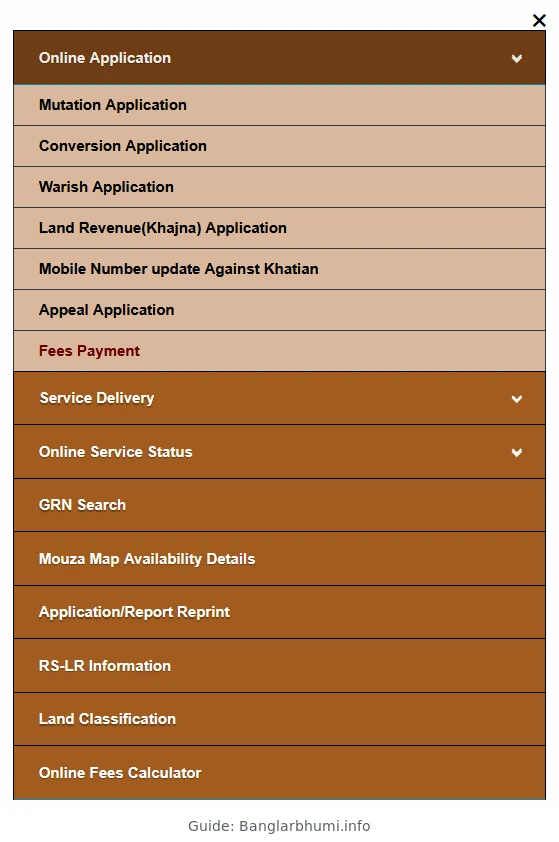
To pay fees for an existing Banglarbhumi application, sign in to the official Banglarbhumi portal and go to Citizen Services → Online Application → Fees Payment. Select the request type, enter your application number, complete the CAPTCHA and click View. Check the amount shown and, if payment is available, follow the portal’s instructions to continue through GRIPS.
What you need before paying
Keep the application number from your acknowledgment and the name of the service you applied for. The request type should match the original application. For example, use the revenue option for an existing Khajna application if that is the label the portal shows. If you still need to submit one, start with the Land Revenue (Khajna) Application guide.
How to pay fees on Banglarbhumi
- Open the official portal and sign in.
- Open Citizen Services → Online Application → Fees Payment.
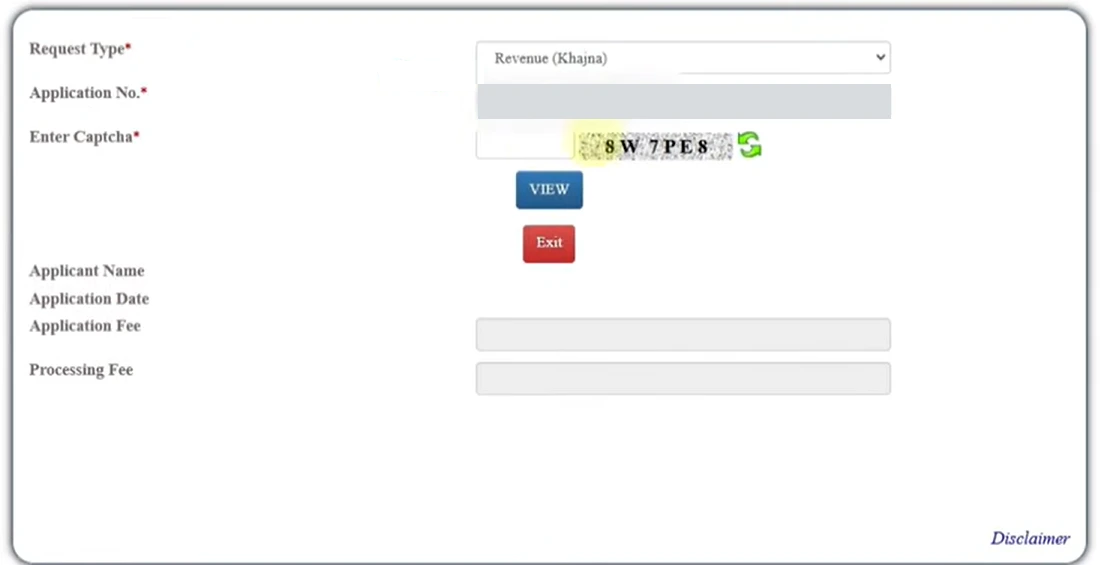
Find your application and review the fee
- In Fees Collection, choose the matching Request Type.
- Enter the Application No. from your acknowledgment and complete the CAPTCHA.
- Click View. Compare the applicant details and application date with your acknowledgment, and review the application fee and processing fee shown. If the details do not match, stop and check the request type and number before paying.
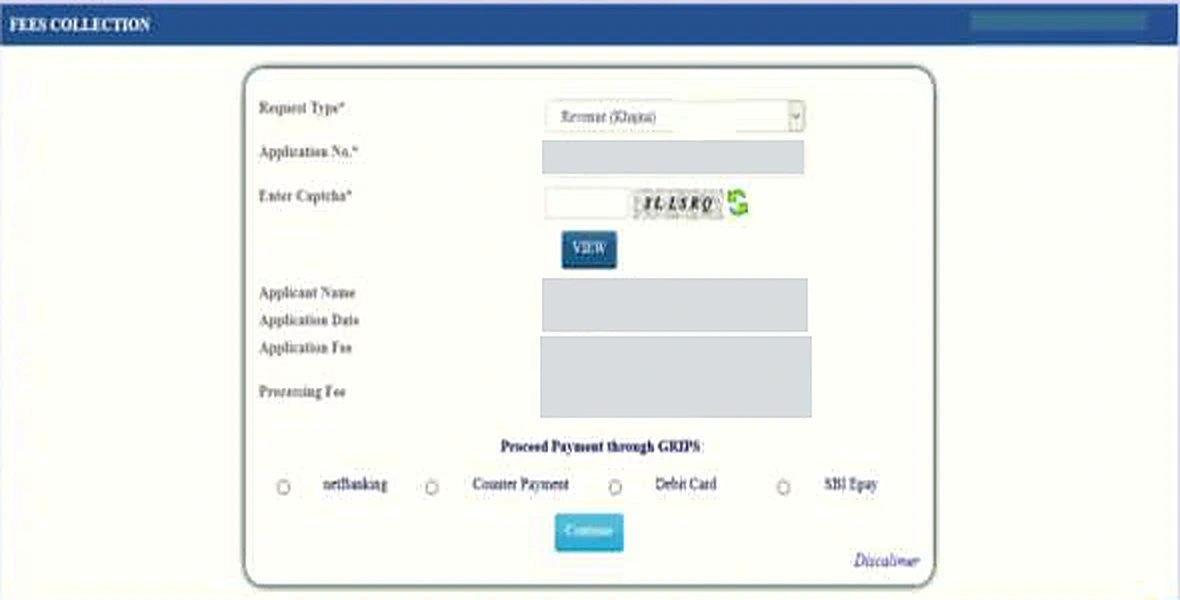
Continue through GRIPS
If the portal offers payment through GRIPS, review the amount and department reference before continuing. Select a payment method from the options shown for your transaction and follow the instructions on the official payment screen. The West Bengal land revenue process guide documents the GRIPS confirmation step for Khajna. Use the options and amount displayed for your own application.
Keep the application number, Government Reference Number (GRN) if issued, and the bank transaction reference. Save the receipt or acknowledgment if the portal provides one. These references help you check the same transaction later.
What to do if your payment or receipt is missing
- No application found: Recheck the request type and copy the application number from your acknowledgment. For Khajna, look for Application No. Recovery (Khajna) under Online Service Status if you have lost the number.
- Money debited but no confirmation: Save the debit reference, amount and date. Check the existing transaction before trying to pay again. If you have a GRN, use GRN Search. For Khajna, the portal also lists Payment Status of Land Revenue (Khajna) under Online Service Status. If the status remains unclear, contact official support with the transaction details.
- Payment confirmed but receipt missing: Use the matching receipt option in Application/Report Reprint if available. Choose the receipt for the service you paid for.
Frequently asked questions
Can I use a khatian number instead of an application number?
The Fees Collection form shown here asks for an application number. Use the number from your acknowledgment. A khatian number identifies a land record and a GRN identifies a payment reference.
Is there a fixed Banglarbhumi payment fee?
Check the fee displayed after you load your application. The amount shown for an example or a different service may not match your request.
Does a successful payment mean my application is approved?
A successful payment confirms the transaction. Check the relevant application or case status separately for the decision.