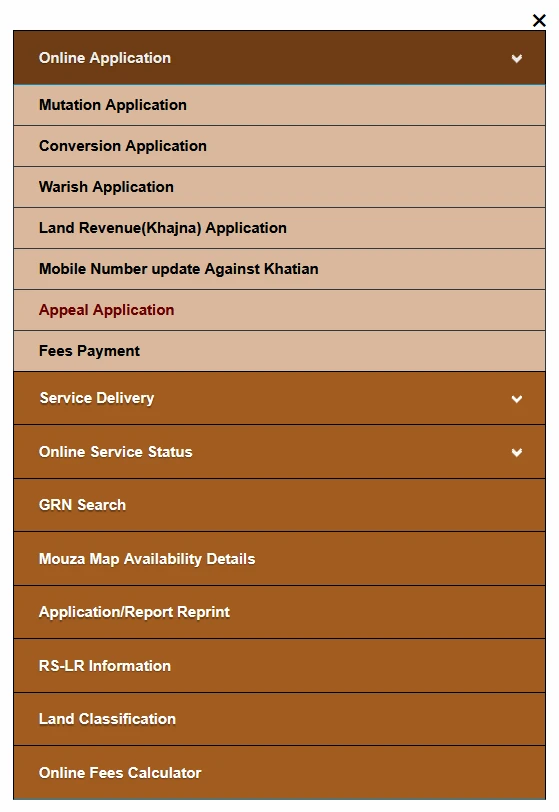
The Banglarbhumi Appeal Application option appears under Citizen Services → Online Application in the menu screenshot below. The illustrated form contains sections for appellant details, respondents, nature of case, land details and supporting documents.
This guide explains the visible fields and the checks to make while preparing the form. Before filing, confirm the applicable appeal procedure, authority and time limit for your particular order or case. For other services, visit our Banglarbhumi land records guide.
What Is the Banglarbhumi Appeal Application Form?
The Appeal Application form collects information about the person filing the appeal, the respondents, the reference case and the land involved. It also provides upload fields for appeal-related documents.
An appellant is the person bringing the appeal. A respondent is a party against whom, or in relation to whom, the appeal is brought. Enter the parties as identified in your appeal papers.
Choosing a service on the portal does not establish that every land dispute can be appealed through that form. Check your order and the relevant official instructions before selecting the application type or legal section.
What to Keep Ready Before Starting
- Appellant details: name, guardian relationship, address, mobile number and email.
- Respondent details: the names and contact details required for the parties in your appeal.
- Case reference: the relevant case number and order or case papers.
- Land references: district, block, mouza, plot number and khatian details where applicable.
- Appeal documents: the memo of appeal, certified copy and any other documents required for your case.
- Account access: your Banglarbhumi citizen login details if sign-in is required.
Confirm the filing deadline before spending time preparing the online form. If you are unsure about the correct appeal route, authority or legal section, obtain clarification from the relevant office or a qualified legal professional.
How to Open Appeal Application on Banglarbhumi
- Visit the official Banglarbhumi portal.
- Sign in to your citizen account if prompted.
- Open Citizen Services.
- Expand Online Application.
- Select Appeal Application, where available.
- Read any instructions displayed before completing the form.
For account-access help, read our Banglarbhumi Sign Up and Login guide. Follow the current portal instructions if the menu or form layout differs from the reference images.
Step 1: Complete the Appellant Details
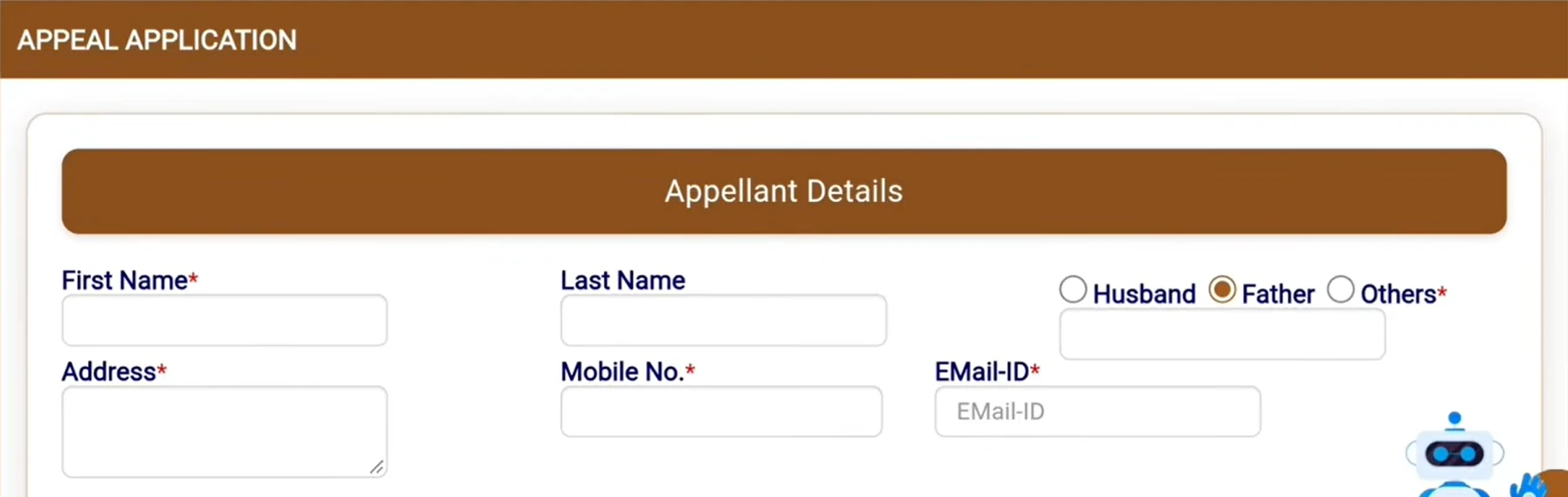
Enter the details of the person filing the appeal. The reference form shows these fields:
- First Name
- Last Name
- Husband / Father / Others relationship selection and the corresponding name field
- Address
- Mobile No.
- Email-ID
Use details consistent with your appeal papers. Check spelling and contact information carefully, and complete the fields marked as required on the current form.
Step 2: Add the Respondent Details
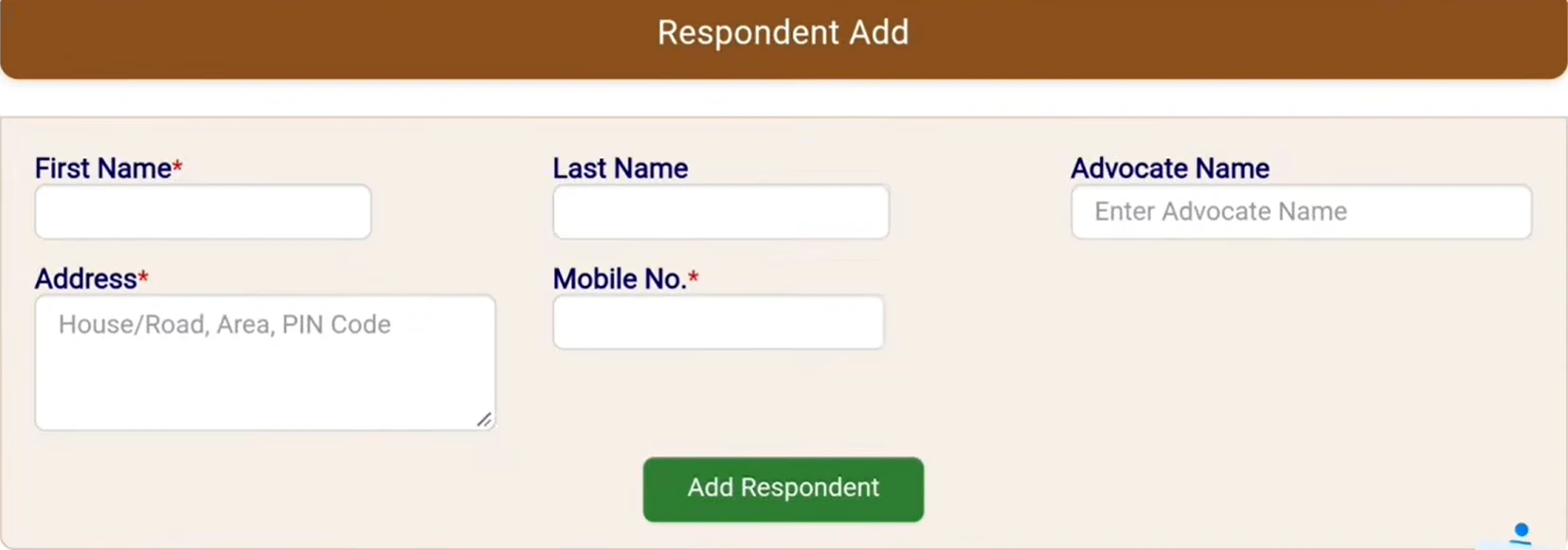
The Respondent Add section contains fields for First Name, Last Name, Advocate Name, Address and Mobile No.
- Enter the respondent details according to the appeal papers.
- Complete the required fields shown on the form.
- Enter the advocate name where applicable and requested.
- Select Add Respondent.
- Check that the respondent appears in the added-respondents area.
- If further respondents must be included, follow the same process and verify each entry.
Typing details into the fields is different from adding an entry to the application. Check the added list before moving on. The presence of an Advocate Name field alone does not establish whether representation is compulsory for your case.
Step 3: Enter the Reference Case and Case Category
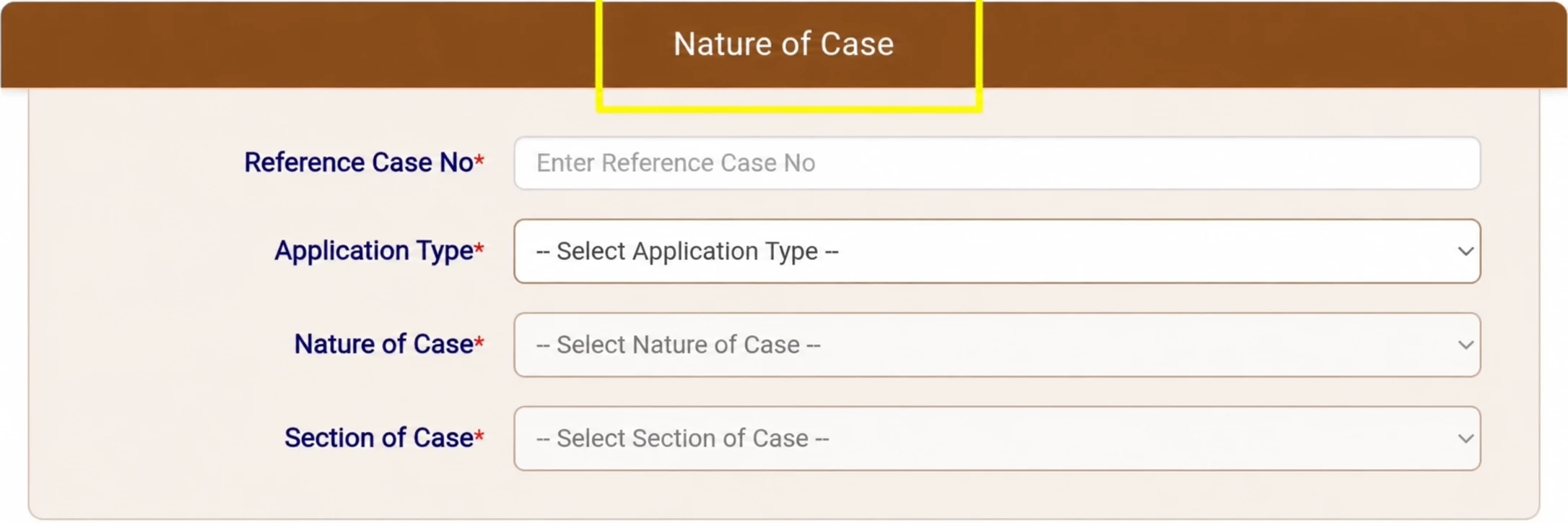
The Nature of Case section shows four required fields:
- Reference Case No.
- Application Type
- Nature of Case
- Section of Case
Enter the relevant reference case number from your papers. Select the application type, nature and section according to the order being challenged and the applicable official instructions. Available dropdown options may depend on earlier selections.
Do not copy a legal section from a demonstration. A section selected in a video example may concern a different proceeding. If you cannot identify the correct selection, clarify it before proceeding.
The reference case number identifies the related proceeding. Any new appeal acknowledgment issued later is a separate reference. A payment GRN or bank transaction ID should not be substituted for a case number unless the portal specifically instructs you to do so.
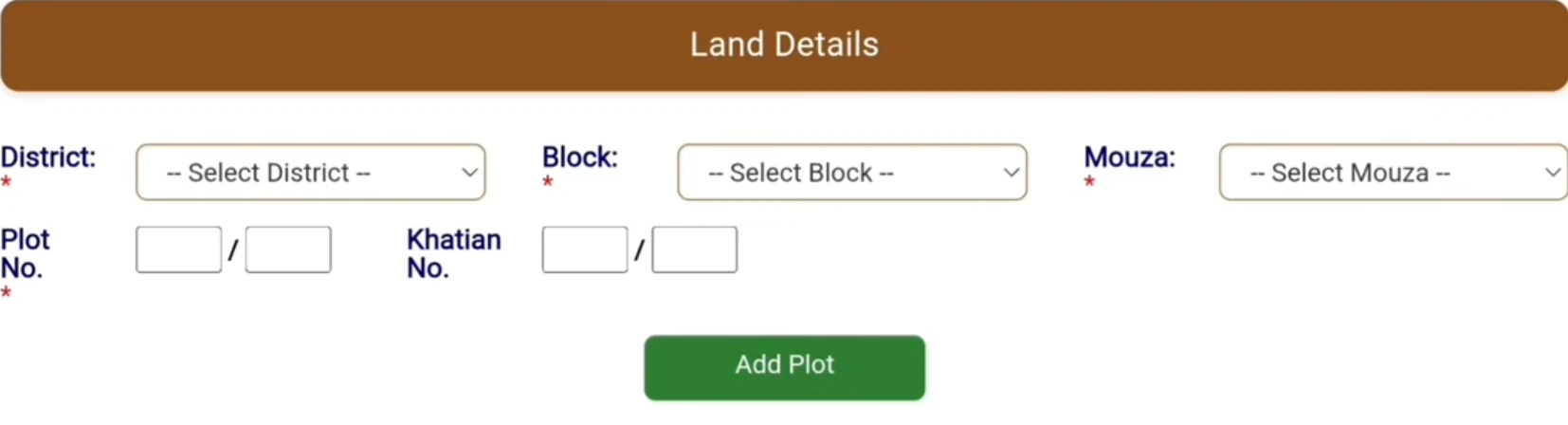
Step 4: Add the Land Details
- Select the relevant District.
- Choose the Block and then the Mouza.
- Enter the Plot No. using the fields shown.
- Provide the Khatian No. where applicable or required by the current form.
- Enter any slash or bata portion according to the record and the form instructions.
- Select Add Plot.
- Check that the intended land entry has been added before continuing.
Use land references consistent with the case papers. Do not guess a subdivision number or automatically enter “0.” If you need to check a reference, use our Khatian and Plot Information guide.
Step 5: Upload the Appeal Documents
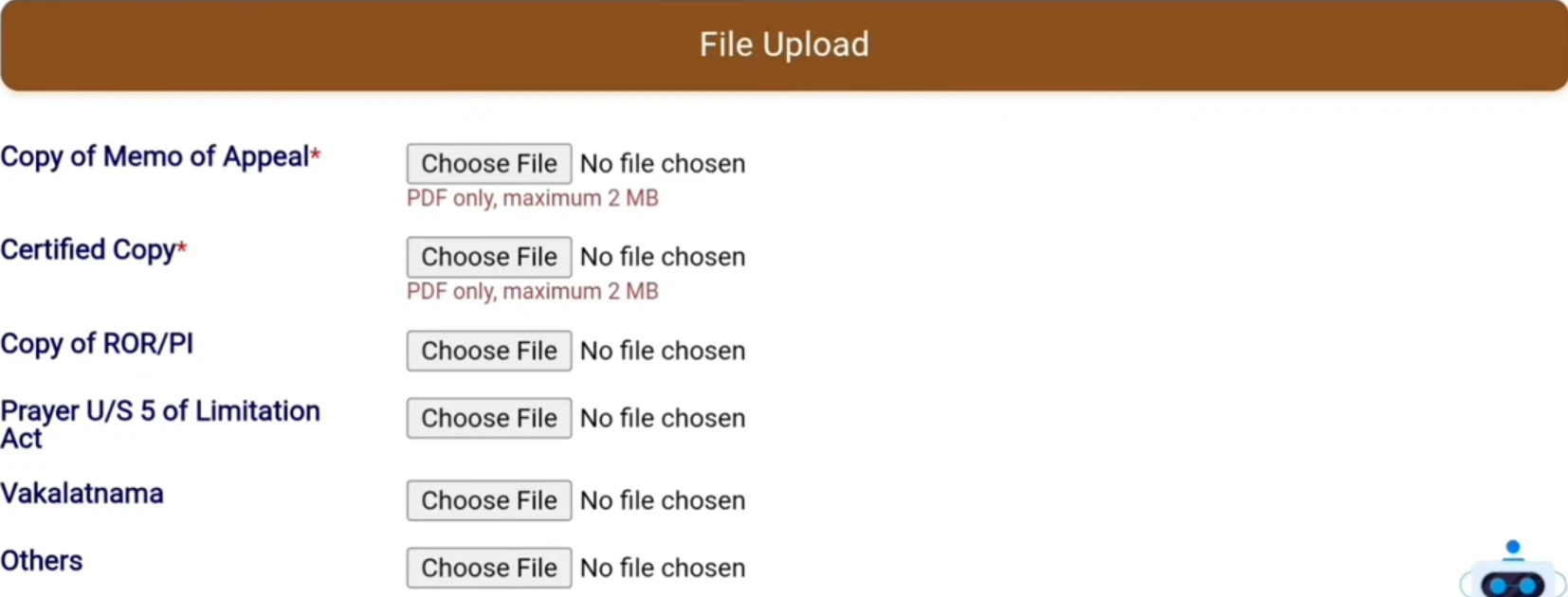
The reference form displays the following upload categories. Required markers and file restrictions should always be checked on the current form.
| Upload field | What the reference screenshot shows |
|---|---|
| Copy of Memo of Appeal | Required marker; PDF only, maximum 2 MB. |
| Certified Copy | Required marker; PDF only, maximum 2 MB. Confirm which certified document is required for your proceeding. |
| Copy of ROR/PI | A separate upload field; no required star is visible in the screenshot. |
| Prayer U/S 5 of Limitation Act | A separate upload category. Its applicability must be checked for the particular case. |
| Vakalatnama | A separate upload category; provide it where applicable and required. |
| Others | A field for other relevant supporting documents, following the portal instructions. |
The presence of a limitation-related upload field does not establish a general filing deadline or guarantee that a delayed appeal will be accepted. Confirm the applicable requirements for your proceeding.
If you need an available land-record copy, see our Signed ROR, PI and PLM Copies guide. Check that any document obtained is the specific document required for the appeal; a land-record copy should not automatically be treated as the certified copy of the order being challenged.
Prepare Readable Files Before Uploading
- Check that every required page is included and in the correct order.
- Keep names, case numbers, dates, signatures and other relevant details readable.
- Use a genuine PDF where required. Renaming an image file to “.pdf” does not convert it.
- Follow the size limit shown beside each upload field.
- Open the final file before uploading to check that it is complete and readable.
- Choose the correct document for each category and check the selected filename.
Review the Application Before Final Submission
Before completing the remaining on-screen steps, check the following:
- The appellant’s name and contact details match the intended application.
- All necessary respondent entries have been added and checked.
- The reference case number and case selections correspond to the appeal papers.
- The location, plot and khatian references are correct.
- The intended plots have been added to the application.
- Each required document is selected under the appropriate upload category.
- Any declaration or verification displayed on the current page has been read and completed.
Follow the submission and any applicable fee instructions actually displayed by the portal. The screenshots in this guide do not show the final submission, payment or acknowledgment screens, so they do not establish the button names or a fixed fee.
What to Keep After Submission
If the portal confirms submission, save the acknowledgment, appeal or application reference and a copy of the submitted details where available. Keep any payment receipt separately if a payment was required.
Read any further instructions about documents, verification or hearings. A submission acknowledgment is not a decision allowing the appeal. Use the tracking route specified in that acknowledgment or by the relevant office; do not assume that the ordinary mutation-status screen tracks a separate appeal.
If you need to check the original mutation proceeding, our Mutation Status guide explains that separate lookup.
Common Appeal Form Problems
Respondent Details Are Not Added
Check for incomplete required fields and validation messages. Select Add Respondent and confirm that an entry appears in the added-respondents area before entering another respondent.
A Plot Entry Does Not Appear
Check the selected location and plot reference, then read any validation message. Confirm that you used Add Plot and that the intended entry has been recorded before continuing.
Case-Selection Dropdowns Are Empty
Complete earlier selections first and allow dependent lists to load. If the correct category remains unavailable, do not choose an unrelated option simply to proceed. Check the service instructions or seek clarification from the relevant office.
A PDF Is Rejected
Check the file format and size against the instructions beside that field. Open the PDF to confirm it is not corrupted. If necessary, create a fresh readable PDF within the specified limit and select it again.
The Session Expires or No Confirmation Appears
Check whether the portal asks you to sign in again or displays a validation message. Keep any reference already issued. Establish whether submission succeeded before sending repeated applications, and contact the relevant office if the outcome remains unclear.
Frequently Asked Questions
Where is Appeal Application on Banglarbhumi?
The menu screenshot shows it under Citizen Services → Online Application → Appeal Application. Sign in if prompted and follow the options available on the current portal.
What is the difference between appellant and respondent?
The appellant brings the appeal. Respondents are the parties named in relation to that appeal. Use the party details specified in your appeal papers.
Which documents are marked as required?
The reference screenshot marks Copy of Memo of Appeal and Certified Copy as required. Both display PDF-only instructions with a maximum size of 2 MB. Check the current form and the requirements of your case for the complete document list.
Should everyone select Section 51A(4)?
No. A legal section shown in a demonstration is not a universal selection. Use the section applicable to the particular proceeding, based on your case papers and the relevant instructions.
What are the appeal deadline and fee?
The screenshots do not establish a universal deadline or fee. Confirm the applicable time limit and filing requirements for the order concerned, and follow the official payment instructions where provided.
Does online submission mean the appeal is approved?
No. Keep the acknowledgment and follow subsequent official instructions. Submission and the authority’s decision are separate stages.
Official website: banglarbhumi.gov.in. Banglarbhumi.info provides independent service guides. This article explains the illustrated form and does not determine the legal merits, deadline or proper appeal route for an individual case.