To submit a Banglarbhumi Mouza Map Application, sign in to the official portal and select Citizen Services → Service Delivery → Mouza Map Request. Choose District, Block, Mouza, Map Type and Sheet No. Check the selected map using View Mouza Map, complete the applicant details and CAPTCHA, then review and submit the form. Follow the portal’s response for further payment and delivery instructions.
Mouza Map Application describes the application process; Mouza Map Request is the official service name shown in the menu. This guide covers that request form. To check availability before applying, read our Mouza Map Availability Details guide.
Use the official Banglarbhumi portal to apply. Our Banglarbhumi land records guide explains related services. Banglarbhumi.info is an independent information website and does not issue maps or collect government fees.
Details needed for a Mouza Map Request
Identify the required map before starting. A mouza may have multiple sheets, and different map records may use different plot references.
| Detail | What to prepare |
|---|---|
| District, Block and Mouza | The correct land-record location from your papers. |
| Map Type | The map record relevant to your purpose, matching an available portal option. |
| Sheet No. | The sheet containing the area you need. |
| Applicant name | Your correct name for the application. |
| Guardian details | The appropriate Father, Husband or Others selection and guardian name. |
| Address | Accurate applicant address details. |
| Citizen account | Your official portal login credentials. |
The pictured request form does not show a plot-number or Khatian-number input. Those references can help you identify the land and relevant sheet, but should not be entered into unrelated fields. If needed, verify your references using the Khatian and Plot Information guide.
How to open Mouza Map Request
- Visit the official Banglarbhumi website.
- Sign in using your citizen account when prompted.
- Open Citizen Services.
- Expand Service Delivery.
- Select Mouza Map Request.
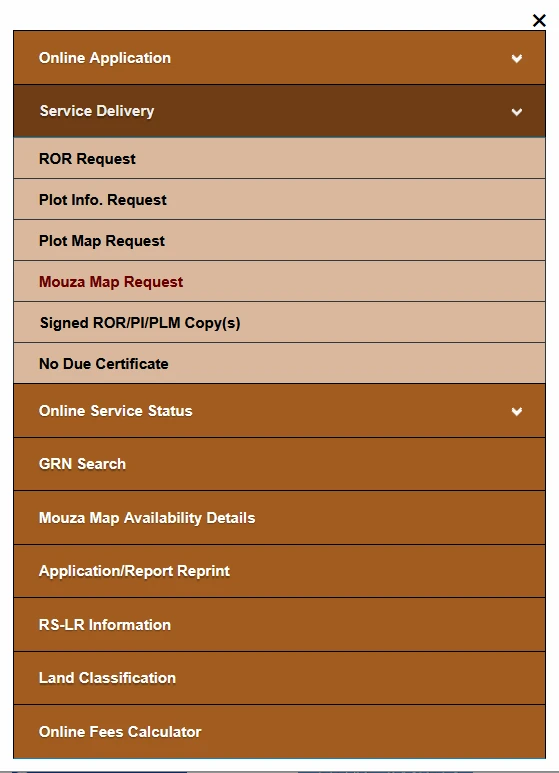
Choose the service that matches your purpose. Plot Map Request is listed separately. Mouza Map Availability Details checks availability and does not itself submit this application.
Select District, Block, Mouza, Map Type and Sheet No.
1. Select the land location. Choose District, then Block and Mouza. Allow each dependent list to load before continuing. If you change an earlier selection, recheck the later selections.
2. Select Map Type. Choose the map record needed for your purpose from the options displayed. LR means Land Reforms and RS means Revisional Settlement. Confirm which record you require rather than selecting another type simply because it is available.
If your papers contain different old and current plot references, consult our RS-LR Plot Information guide. Obtain official clarification if you cannot identify the relevant record.
3. Select Sheet No. A sheet number identifies a map sheet, not an individual plot. A mouza may have more than one sheet. Use an available map index or preview, or ask the responsible land-record office if you are unsure which sheet covers the area you need.
View the selected Mouza Map
4. Click View Mouza Map. After completing the map selections, use this button to inspect the selected map when available. Compare the location and map references with your requirements before continuing.
The supplied map-viewer example includes numbered plots, zoom controls and a Search Plot No. field. Where offered, use these controls to inspect the sheet and locate the relevant plot. If a plot is not found, check the sheet, map type and plot reference before concluding that the record is missing.
If the viewer opens in a new window or tab, check for a browser notification about blocked pop-ups. Return to the application form after reviewing the map. A preview does not itself complete the request or issue a certified copy.
Complete applicant details and submit
5. Enter your name. Complete First Name and Last Name where applicable. Follow the required-field markers and validation displayed by the form.
6. Complete guardian and address details. Select the appropriate Father, Husband or Others option and enter the guardian name requested. Fill in the address accurately. These fields identify the applicant; they are not a property search by name.
7. Enter the CAPTCHA. Type the characters currently displayed in your session. Use the refresh icon if they are unclear. The CAPTCHA in the example screenshot cannot be reused for your application.
8. Review and click Submit. Check the location, Map Type, Sheet No., applicant name, guardian details and address. Submit only after confirming the request concerns the correct map. Read the portal’s response and follow the next instructions displayed.
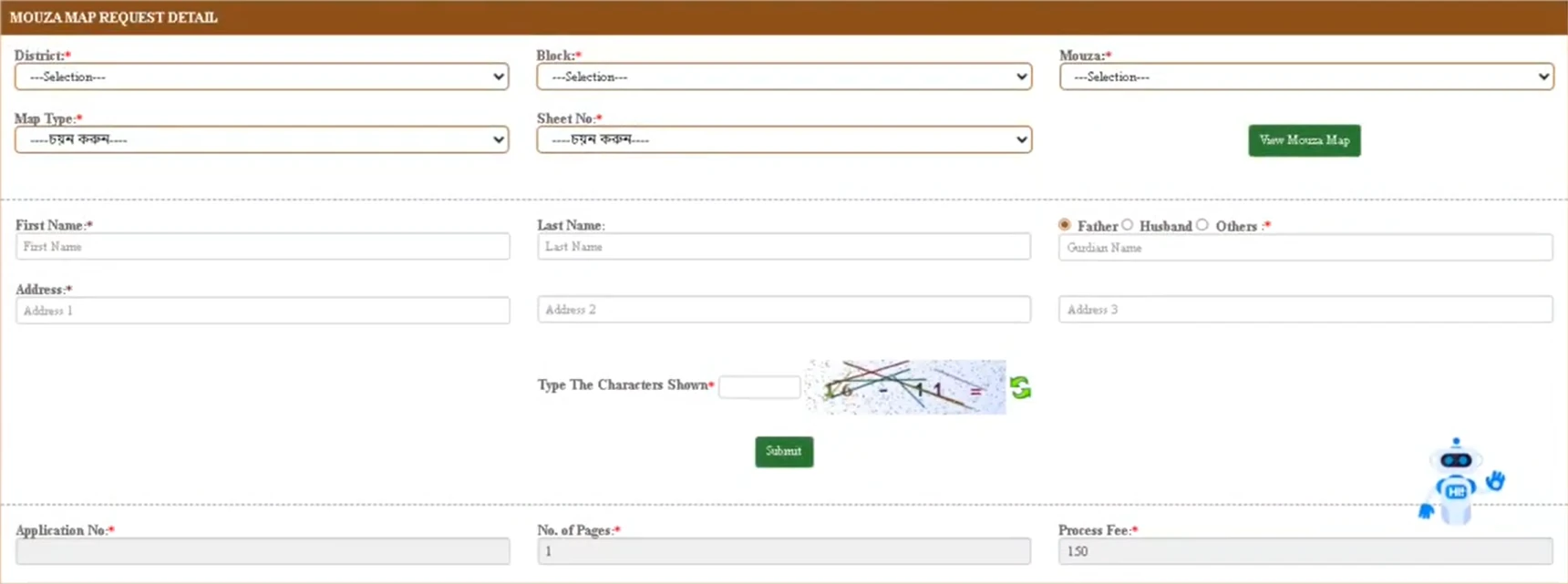
The form also displays Application No., No. of Pages and Process Fee. Follow the portal’s instructions for these fields and retain the application reference when issued. Do not invent an application number.
Mouza Map Application fees and payment
The example form shows No. of Pages: 1 and Process Fee: 150. Check the amount displayed for your actual map selection. These captured values should not be treated as a permanent fee schedule for every request.
If an official payment step is presented, verify the application reference and amount before paying. Save the application acknowledgement, transaction details and payment receipt separately.
If money is debited without confirmation, check the official payment response before paying again. Our Banglarbhumi GRN Search guide explains related reference checks. A debit message alone does not establish that the map request or delivery has completed.
After submission: reference and map delivery
Keep the Application No. when issued, acknowledgement, selected location, Map Type and Sheet No. Retain any payment reference and follow the delivery, collection or download instructions provided for your request.
The Application No., No. of Pages and Process Fee fields on the application page do not establish a separate status-search method. Use the follow-up instructions attached to your request, or contact the responsible office with the reference and exact issue.
Do not assume submission guarantees immediate download. A map preview, an application acknowledgement and an issued official copy serve different purposes.
Common Mouza Map Request problems
| Problem | What to check |
|---|---|
| Block or Mouza list does not load | Wait for the previous selection to load. Re-select the location or reopen the service after signing in again. |
| Required Map Type or Sheet No. is missing | Recheck the location and availability service. Seek official guidance if the required record remains unavailable online. |
| Unsure which sheet to choose | Use an available index or preview, or obtain clarification before submitting. |
| Map viewer does not open | Check the selections and any browser notification about a blocked window or tab. |
| Plot cannot be found | Check the sheet, Map Type and plot reference against your papers. |
| CAPTCHA error | Refresh the CAPTCHA and type the new characters shown. |
| Session expires | Sign in through the official homepage and reopen the request service. |
| Payment debited without confirmation | Save the transaction reference and check the official payment response before paying again. |
| Submission outcome is unclear | Check for an acknowledgement or issued reference before creating a duplicate request. |
Frequently asked questions
Are Mouza Map Application and Mouza Map Request the same service?
In this guide, both refer to applying through the official Mouza Map Request service. They do not require separate applications.
Is Mouza Map Availability Details the application form?
No. It is a separate availability check. Open Service Delivery → Mouza Map Request to access the application form.
Is Sheet No. the same as a plot number?
No. One map sheet can contain multiple plots. Identify the sheet relevant to your area.
Where is the Calculate Fee button?
The supplied form shows View Mouza Map and Submit. Follow the controls currently displayed rather than looking for a button mentioned in an older guide.
Is the fee always 150?
The screenshot shows 150 in Process Fee. Confirm the current amount and instructions displayed for your actual request.
Can a map preview confirm ownership or ground boundaries?
Do not rely on a preview alone as conclusive ownership evidence or a current ground survey. Obtain the appropriate records and official guidance for transactions, disputes or boundary demarcation.
Official service reference
The official Banglarbhumi service menu lists Mouza Map Request under Service Delivery. Use the government portal for applications, current charges and delivery instructions.
2 thoughts on “Banglarbhumi Mouza Map Request: Online Application Guide”
Comments are closed.