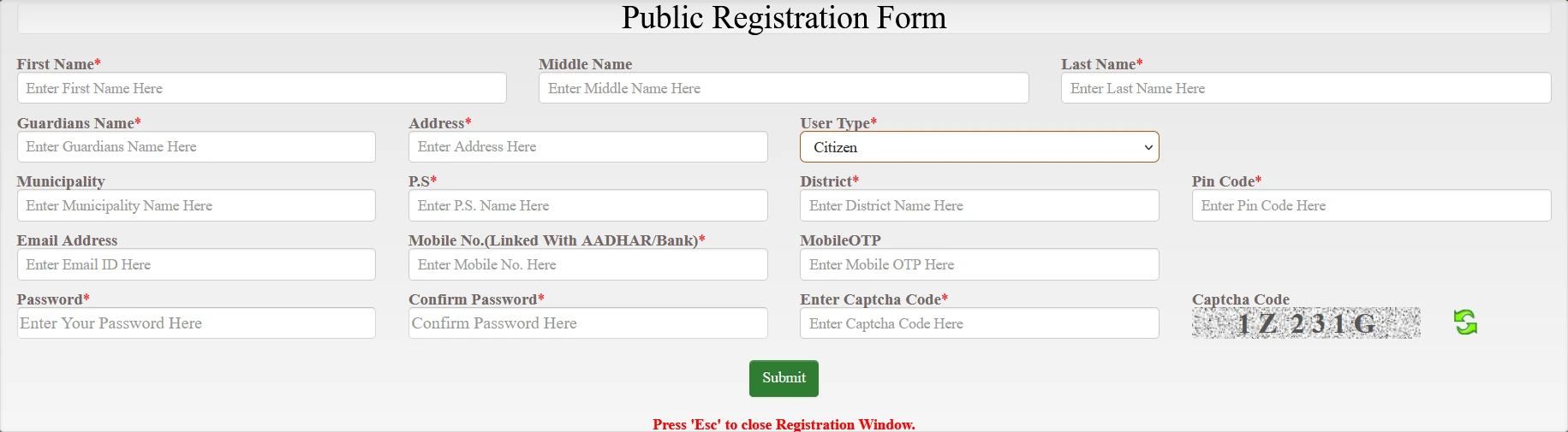
To start Banglarbhumi Sign Up, open the official portal and click SIGN UP. Complete the Public Registration Form with your name, guardian details, address and contact information, select the appropriate User Type, and enter the password, confirmation and CAPTCHA. Complete mobile verification as instructed by the portal, review the details and submit. Read the response to confirm whether registration succeeded or further action is required.
Register only through the official Banglarbhumi website. For an overview of land-record searches and applications, visit our Banglarbhumi land records guide. Banglarbhumi.info provides independent instructions and does not create government accounts or collect passwords and OTPs.
Banglarbhumi Sign Up and Sign In: the difference
| Option | When to use it |
|---|---|
| SIGN UP | Start registration for a new account. |
| SIGN IN | Access an existing account. |
| FORGET PASSWORD | Open the account-recovery option shown in the login window. |
If you already have an account but cannot remember the password, use the recovery option rather than creating duplicate registrations. Access requirements depend on the service; do not assume every information search requires a new account.
Where to find the SIGN UP option
- Open the official Banglarbhumi homepage.
- Look for SIGN UP near SIGN IN at the top of the page.
- Select SIGN UP to open the Public Registration Form.

The citizen login window also includes a SIGN UP link. The registration screenshot shows an instruction to press Esc to close the registration window.
Details needed for Banglarbhumi registration
The supplied Public Registration Form displays the following fields. A red asterisk marks a required field in this screenshot; also follow any validation message displayed when completing the form.
| Field | What the form shows |
|---|---|
| First Name and Last Name | Both have required markers. |
| Middle Name | No required marker is shown. |
| Guardians Name | Required field for the guardian’s name. |
| Address | Required address field. |
| User Type | Required selection; Citizen is selected in the example. |
| Municipality | No required marker is shown. |
| P.S. | Required field for Police Station. |
| District and Pin Code | Both have required markers. |
| Email Address | No required marker is shown. |
| Mobile No. (Linked With AADHAR/Bank) | Required mobile-number field with this wording. |
| MobileOTP | A verification-code input appears beside the mobile field. |
| Password and Confirm Password | Both have required markers. |
| Enter Captcha Code | Required field with a CAPTCHA image and refresh control. |
These are registration details, not the location fields for searching a particular plot. Enter the information requested for your account and address rather than copying a land-search selection into an unrelated field.
How to fill the Public Registration Form
1. Enter your name and guardian details. Complete First Name, Middle Name where applicable, Last Name and Guardians Name accurately. If your name does not fit the required structure, obtain official guidance rather than inventing a surname or other identity information.
2. Complete the address information. Enter Address, Municipality where applicable, P.S., District and Pin Code. P.S. refers to Police Station. Check spellings and the PIN before continuing.
3. Select the appropriate User Type. The example shows Citizen. Use the category appropriate to your registration; departmental access is a separate account category.
4. Enter your contact details. Provide the mobile number requested by the form. Its label states Mobile No. (Linked With AADHAR/Bank). This label does not mean an Aadhaar-number or document-upload field is present in the pictured form. If you provide an email address, check it carefully.
5. Complete mobile verification as instructed. The form contains a MobileOTP input. Follow the portal’s prompts for obtaining and entering the verification code. Use a number you control and enter the latest valid code received for the registration attempt.
6. Set and confirm your password. Enter the same password in Password and Confirm Password. Follow the password requirements actually displayed by the portal. Avoid accidental spaces and check keyboard settings if the values do not match.
7. Enter the current CAPTCHA. Type the characters displayed beside the input. Refresh the CAPTCHA if it is unclear and enter the newly displayed characters. Do not reuse the example code shown in the screenshot.
8. Review and submit. Check the required fields and any validation messages before selecting Submit. Read the response and complete any further instructions. A closed form, refreshed page or sent OTP alone does not confirm successful account creation.
Email activation and username: what to check
The pictured registration form does not show a separate Desired Username field. Retain any login identifier or account instructions issued by the portal rather than assuming you can choose a username in a field that is not present.
Email Address has no required marker in the supplied form. Do not assume that every registration requires an email activation link. Follow the actual registration response and any official verification instruction you receive.
How to sign in after registration
- Return to the official homepage and select SIGN IN.
- Select Citizens in the login window for a citizen account.
- Enter the Username associated with your account and its Password.
- Enter the current CAPTCHA. Use Refresh if needed.
- Click Next and complete any further verification requested.
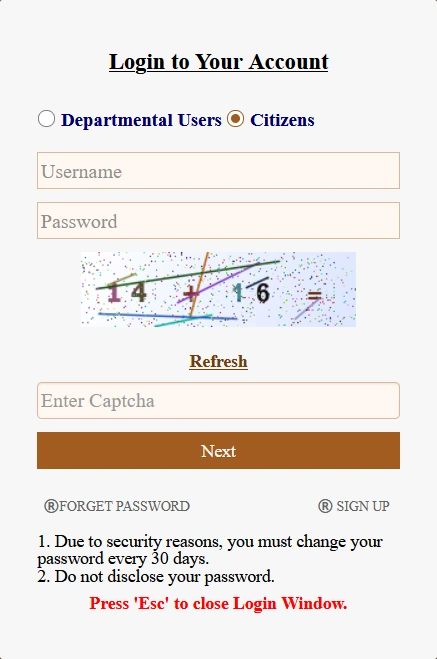
The supplied login window displays a notice to change the password every 30 days and not disclose it. Follow any password-change instruction presented for your account. It also shows Esc as the control for closing the login window.
Common registration and login problems
| Problem | What to check |
|---|---|
| OTP is not received | Check the mobile number and network reception. Follow any resend option or waiting period actually displayed; avoid repeatedly submitting the form. |
| OTP is rejected | Use the latest code for the current attempt. Follow the portal’s expiry or resend instructions. |
| Password confirmation fails | Check both entries, accidental spaces and keyboard settings. Follow the displayed password rules. |
| CAPTCHA is rejected | Refresh it and enter the new characters exactly as displayed. |
| Required name or address detail is unavailable | Seek official guidance rather than entering invented information. |
| Mobile number or account is reported as already registered | Check whether an account already exists and use sign-in or recovery instructions before starting another registration. |
| Form closes without a clear outcome | Check for a success or error response and any official account communication before repeating the registration. |
| Login fails | Confirm Citizens is selected, use the correct account identifier and refresh the CAPTCHA. Use FORGET PASSWORD if needed. |
| Page fails or session expires | Reopen the official homepage and retry. Keep required details ready before starting again. |
Forgot your password?
Open SIGN IN and select the FORGET PASSWORD link shown in the login window. Follow the fields and verification instructions on the recovery screen. Do not assume that its steps are identical to new-account registration.
Creating another account is not a substitute for recovering an existing one. Keep control of the contact details associated with your account.
Services to use after signing in
Choose the service matching your task rather than assuming registration completes a land application. Our Citizen Services guide explains the available service groups.
For property-record searches, see the Khatian and Plot Information guide. For a record-update application, read the Mutation Application guide. Each service has its own information requirements and instructions.
Mobile access and account security
If the wide registration form is difficult to read on a phone, try landscape orientation or the browser’s desktop-site option. Review every required field before submitting. Refreshing or reopening the form may clear unsaved entries.
- Enter passwords and OTPs only in the official portal.
- Use a unique password that meets the portal’s requirements.
- Store account details securely and keep recovery contacts accessible.
- Log out after using a shared device.
- Do not post filled registration forms, passwords or verification codes in public comments.
Frequently asked questions
Where is Banglarbhumi SIGN UP?
The homepage shows SIGN UP near SIGN IN at the top. A SIGN UP link also appears in the citizen login window.
Is email activation always required?
The supplied form does not establish a mandatory email-activation process. Follow the actual response and verification instructions issued for your registration.
Where do I choose a username?
No separate username field is visible in the pictured Public Registration Form. Retain the account identifier and instructions provided by the official portal.
Does the form require an Aadhaar upload?
No Aadhaar-number or document-upload field is visible in this screenshot. The mobile field is labelled Mobile No. (Linked With AADHAR/Bank). Follow any additional instructions actually displayed.
What does P.S. mean?
It refers to Police Station in the address section.
Does receiving an OTP mean registration is complete?
No. Complete the verification and submission instructions, then check the registration response.
Should a citizen select Departmental Users at login?
Use Citizens for a citizen account. Departmental Users is a separate login category.
Official registration portal
Use the official Banglarbhumi website for registration, login and account recovery. Follow the instructions and validation shown for your account.