To use Banglarbhumi Know Your Property, open the official portal and select Know Your Property on the homepage. Choose the land’s District, Block and Mouza, select the appropriate Khatian type where applicable, then choose Search By Khatian or Search By Plot. Enter the relevant number, complete the CAPTCHA and click VIEW.
This guide explains the search controls and common input problems. For record terminology and help understanding the returned information, read our Khatian and Plot Information guide. Other services are available through our Banglarbhumi land records guide.
What is Banglarbhumi Know Your Property?
Know Your Property opens the Banglarbhumi Khatian & Plot Information search. It lets you retrieve the available land-record information using the relevant location and Khatian or plot reference.
A property-information search is different from applying for mutation, checking an application status or requesting an issued record copy. It does not itself change the land record or determine ownership conclusively.
How to open Know Your Property
- Visit the official Banglarbhumi homepage.
- Select the separate Know Your Property option.
- Follow any access or sign-in instructions displayed.
- Continue to the page headed KHATIAN & PLOT INFORMATION.
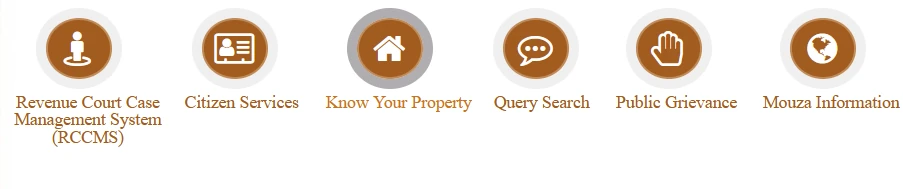
Know Your Property is shown separately from Citizen Services in this screenshot. Start from the official homepage if an old bookmark produces an error or an expired-session message.
Details to keep ready before searching
| Detail | Why you need it |
|---|---|
| District, Block and Mouza | Identify the correct land-record location. |
| Khatian or plot number | Use the reference matching your chosen search method. |
| Khatian type, where applicable | Match the relevant record type instead of choosing an unrelated option. |
| Complete number reference | Keep any second part or slash-separated portion available. |
A Khatian number and a plot number are different identifiers. The same-looking number in another mouza can refer to a different record. Confirm the location before entering the number.
Understand the search form controls
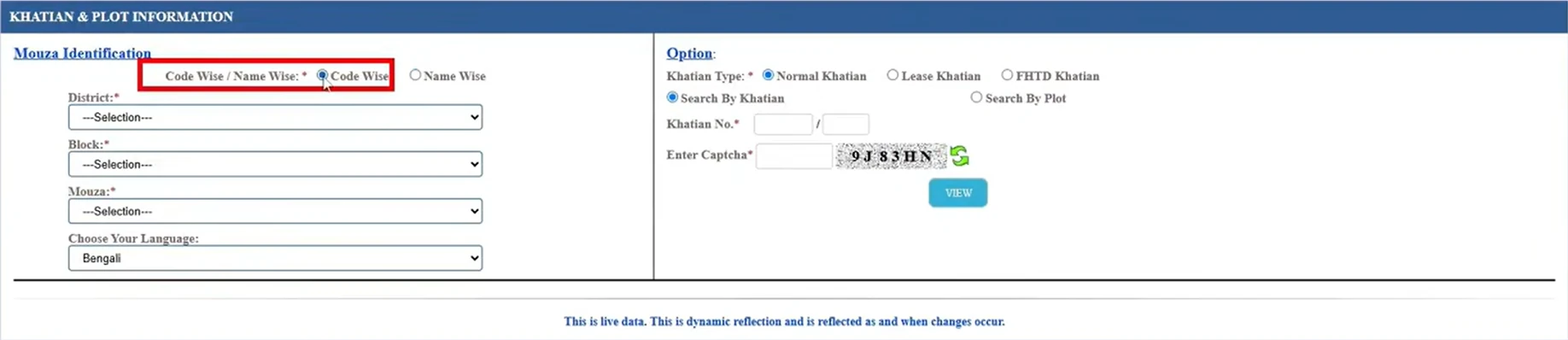
Code Wise / Name Wise: these choices appear under Mouza Identification and concern the location-selection mode. Name Wise should not be interpreted as an owner-name search. Follow the location labels displayed for the mode you choose.
District, Block and Mouza: select them in order and allow each dependent list to load. If you change the District or Block, check the later selections again.
Choose Your Language: select your preferred option from the choices offered. The example has Bengali selected.
Khatian Type: the screenshot shows Normal Khatian, Lease Khatian and FHTD Khatian. Use the type relevant to your record. Do not switch categories at random just to obtain a result; seek official clarification if the correct type is unclear.
Search By Khatian / Search By Plot: choose the method matching the number you have. The example has Search By Khatian selected.
How to search by Khatian number
- Open Know Your Property and select the location-selection mode appropriate to your references.
- Select the correct District, Block and Mouza.
- Choose the language and relevant Khatian type where applicable.
- Select Search By Khatian.
- Enter the Khatian reference in the corresponding number fields.
- Enter the current CAPTCHA and click VIEW.
- Check that the returned location and Khatian reference match your papers.
The screenshot shows two Khatian-number boxes separated by a slash. Where your record contains two parts, enter them in the corresponding boxes rather than placing the complete reference into one box. If a second part is absent or unclear, follow the field instructions instead of inventing a value.
How to search by plot number
- Confirm the District, Block and Mouza.
- Select Search By Plot.
- Enter the relevant plot reference in the fields displayed for that search.
- Complete the current CAPTCHA and click VIEW.
- Compare the returned plot and location with your documents before using the information.
Do not assume the search form converts an RS number into an LR number. If you need to compare old and current plot references, use the separate service explained in our RS-LR Plot Information guide.
CAPTCHA, split numbers and other input checks
Type the CAPTCHA displayed in your current session. The characters in the screenshot are only part of that captured example. If the image is unclear or the characters are rejected, use the refresh icon and enter the newly displayed CAPTCHA.
When copying a reference, check for missing digits, extra spaces and confusion between similar characters such as O and 0. Keep Khatian, plot, application and payment references separate; they are not interchangeable.
If you change a search option, confirm that the number you entered still belongs in the field now displayed.
What to check in the returned record
First confirm the location and searched reference. Then read the fields actually returned for that record, including any recorded names, plot entries, classification, area, share or remarks where shown.
Pay attention to column headings and units. A plot’s total area and a recorded share area can describe different quantities. Do not treat them as interchangeable or infer the reason for a blank field without official clarification.
For detailed terminology, use our Khatian and Plot Information guide. For a land-type entry, see the Land Classification guide.
Save information or request an official copy
You can keep notes of the searched location and number, and save or print the displayed page where your browser allows it. Check that the relevant information is included and readable.
A screenshot or browser print is not the same as a document issued through an official copy service. If an issued record is required, follow the relevant service and the receiving office’s requirements. Our ROR Request guide explains the related copy-request process.
Common Know Your Property problems
| Problem | What to check |
|---|---|
| No matching record | Recheck District, Block, Mouza, search method, relevant Khatian type and the complete number. |
| Block or Mouza list does not load | Wait for the earlier selection to finish loading. Re-select the location or reopen the page if necessary. |
| CAPTCHA is rejected | Refresh it and enter the new characters shown. |
| Number has a slash or second part | Use the corresponding fields and follow the form’s instructions. |
| Unexpected person’s record appears | Check the location and number again. Do not rely on a record that does not match your papers. |
| Old and current plot numbers differ | Check the relevant RS-LR references through the separate service. |
| Login or expired-session message | Return to the official homepage, follow the access prompt and reopen Know Your Property. |
| Page fails or remains blank | Retry through the official homepage and check for service notices. A page error does not establish that a land record is missing. |
If the issue continues, keep the exact error, search details and relevant documents ready for an enquiry with the responsible land-record office. Avoid posting personal documents in public comments.
Using Know Your Property on a mobile phone
Open the official website in a current mobile browser. If a wide form or result table is difficult to read, try landscape orientation or the browser’s desktop-site option. Check selections carefully after changing the view or refreshing the page.
Keep saved references outside the browser tab so they remain available if the session expires.
Frequently asked questions
Is Know Your Property different from Khatian & Plot Information?
Know Your Property is the homepage option that opens the Khatian & Plot Information search. They are connected parts of the same record-search task.
Does Name Wise mean an owner-name search?
No. In the pictured form, Code Wise / Name Wise appears under Mouza Identification. The record search options are Search By Khatian and Search By Plot.
Is login always unnecessary?
Follow the access instructions currently displayed by the official portal rather than assuming that the requirement never changes.
Which Khatian type should I choose?
Choose the type relevant to your record. The pictured options are Normal, Lease and FHTD Khatian. Seek clarification if your document does not make the appropriate choice clear.
Does no record found mean the land has no official record?
No. First check the location, reference, search method and record type. Obtain official clarification if the search remains unsuccessful.
Does KYP prove that a property is free of disputes or loans?
No. Do not treat this search as a complete title, dispute or encumbrance check.
Can I change land details through this search?
No. It retrieves information. Record corrections and other changes require the appropriate official process.
Official portal
Use the official Banglarbhumi website for the search and current instructions. Banglarbhumi.info is an independent guide and does not issue records or make decisions about individual properties.