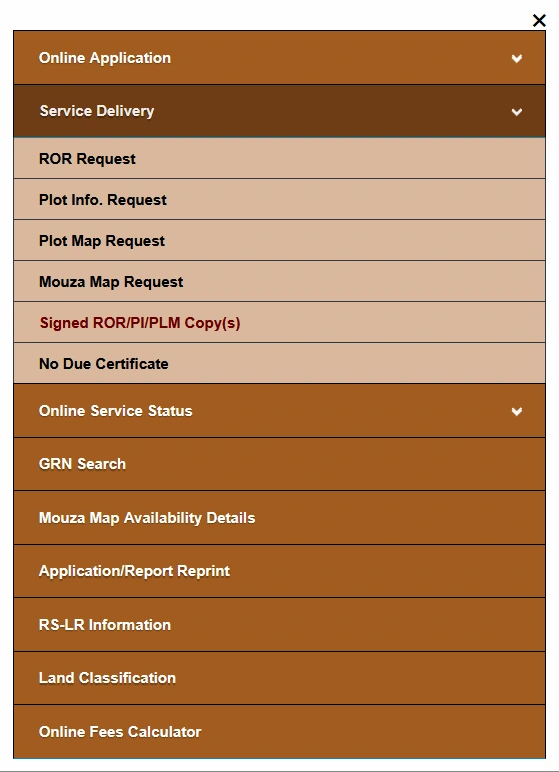
To look up available signed land-record copies, open Banglarbhumi → Citizen Services → Service Delivery → Signed ROR/PI/PLM Copy(s). Choose Application No., Khatian No. or Plot No., enter the details requested by that method and complete the displayed CAPTCHA. Review the matching information and use the document option offered by the portal when a copy is available.
This guide explains the three lookup methods, the details to keep ready and what to check if a document is unavailable. For other services, visit our Banglarbhumi land records guide.
What Are Signed ROR, PI and PLM Copies?
The portal groups these land-record copy services under the menu label Signed ROR/PI/PLM Copy(s). Choose the record that matches your requirement.
| Term | Meaning | Document focus |
|---|---|---|
| ROR | Record of Rights | The relevant land-rights record, commonly associated with khatian information. |
| PI | Plot Information | Information recorded against a plot. |
| PLM | Plot Map | A map relating to a plot. |
A screenshot of an online property search is different from an issued signed document. Retain the original file supplied by the official service when you need a signed copy.
Which Search Method Should You Choose?
| Available reference | Select this tab | Details shown in the illustrated form |
|---|---|---|
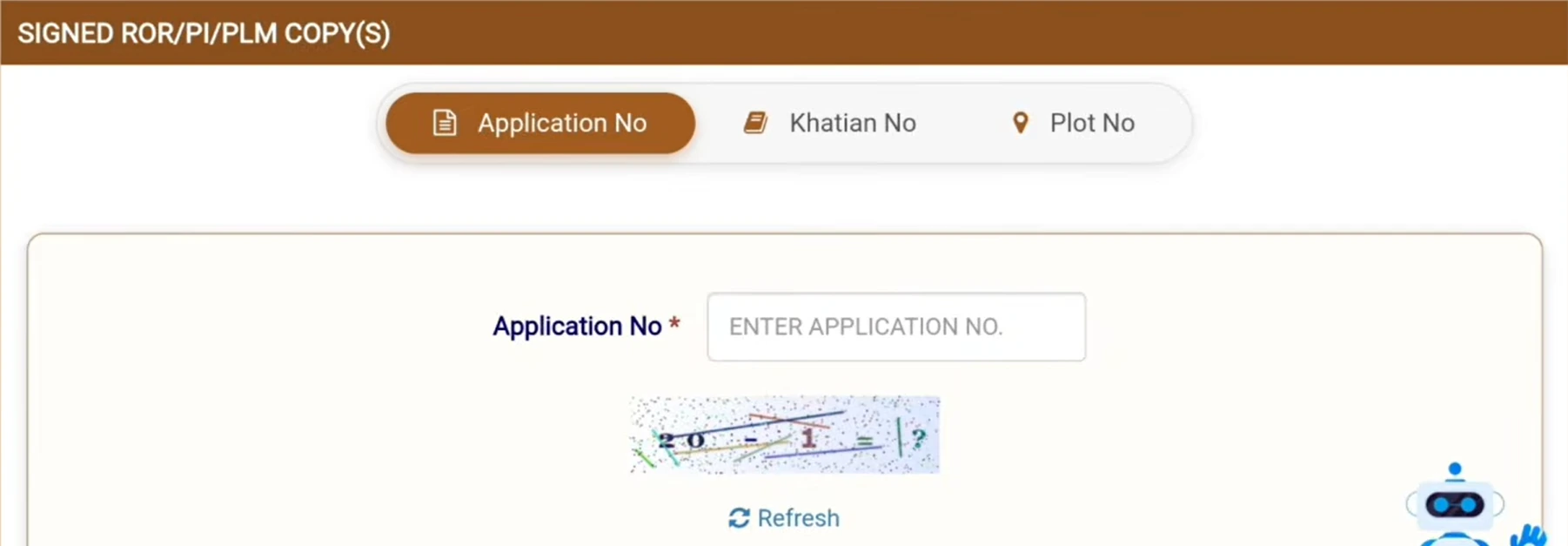
| Application number | Application No | Application number and CAPTCHA. |
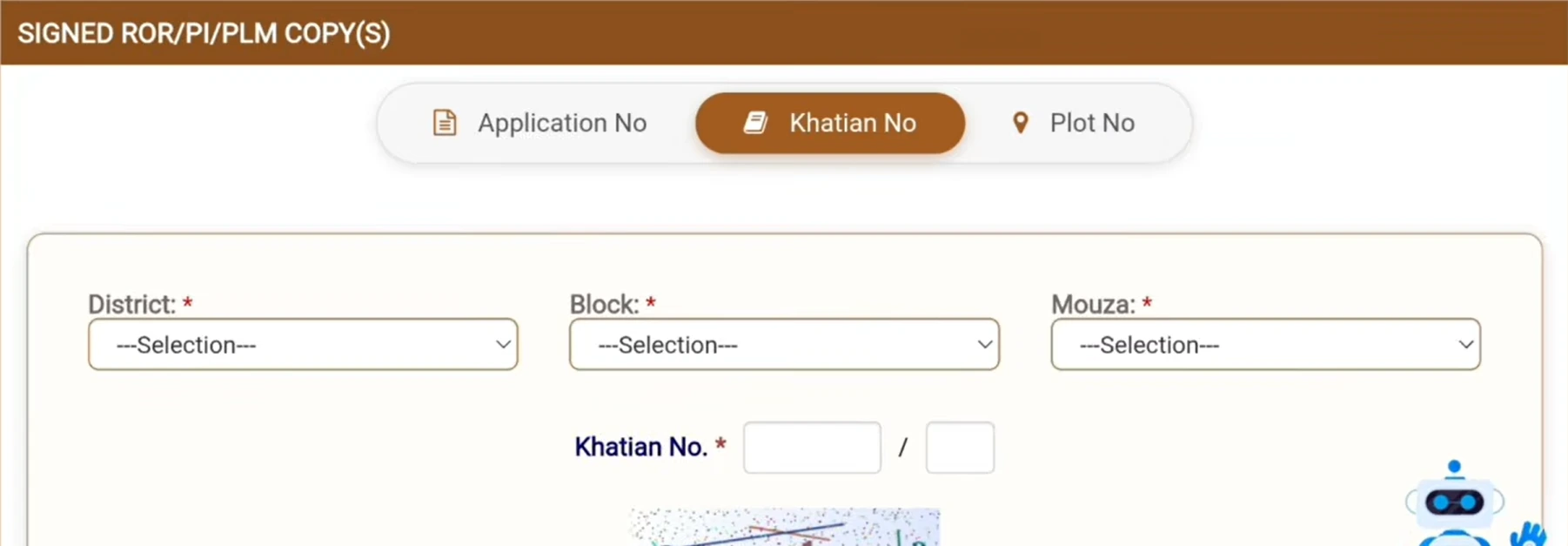
| Khatian number | Khatian No | District, block, mouza, khatian number and CAPTCHA. |
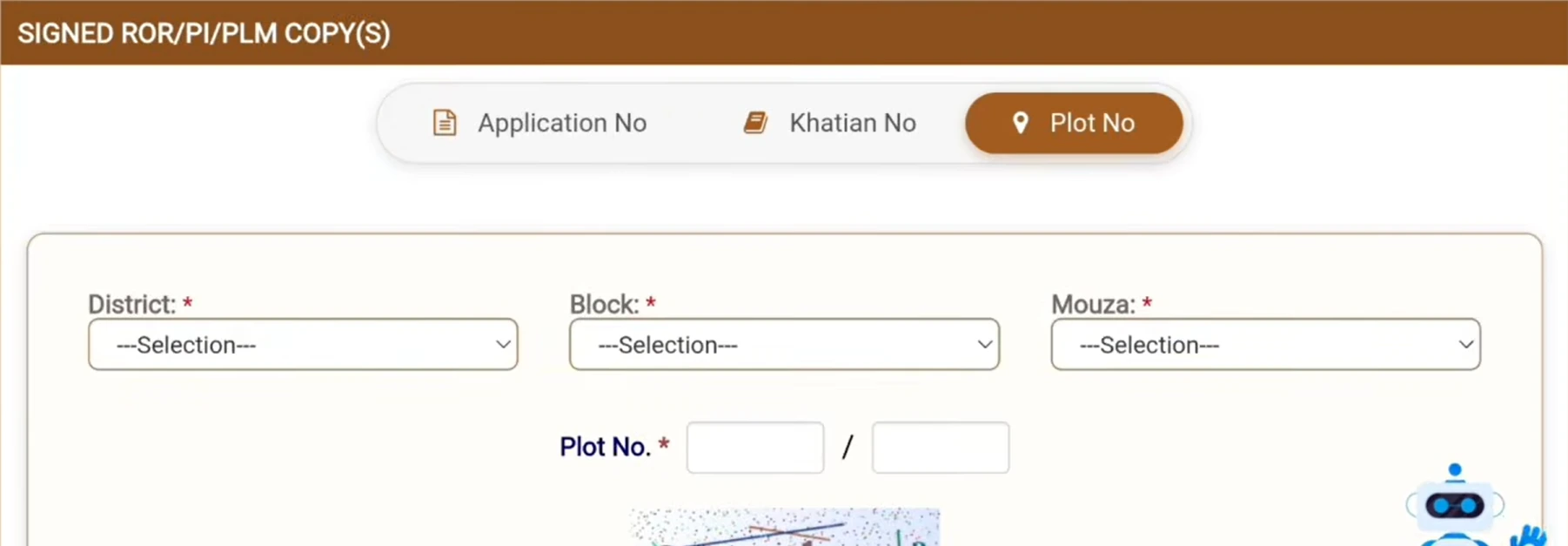
| Plot number | Plot No | District, block, mouza, plot number and CAPTCHA. |
Use the reference requested by the selected tab. An application number, GRN, khatian number and plot number are different identifiers and should not be substituted for one another.
How to Open Signed ROR/PI/PLM Copy(s)
- Visit the official Banglarbhumi portal.
- Open Citizen Services.
- Expand Service Delivery.
- Select Signed ROR/PI/PLM Copy(s).
- Sign in if prompted, then choose the appropriate lookup tab.
Search by Application Number
Use this method when you have the application number for the relevant record-copy request.
- Select the Application No tab.
- Enter the application number exactly as recorded on your acknowledgement.
- Complete the CAPTCHA shown in your session. If it displays an arithmetic question, enter the calculated result in the answer field.
- Scroll down if needed and use the form’s search or submission control.
- Review the response and any available document or follow-up instructions.
Search by Khatian Number
- Select the Khatian No tab.
- Choose the land’s District, Block and Mouza, allowing each dependent list to load.
- Enter the khatian number. Where the form provides slash-separated boxes, follow the number format in your record and the portal’s instructions.
- Complete the displayed CAPTCHA and use the form’s search or submission control.
- Check the returned information and follow the available document instructions.
Search by Plot Number
- Select the Plot No tab.
- Select the correct District, Block and Mouza.
- Enter the plot number in the provided field or fields, following your record’s number format.
- Complete the CAPTCHA and use the form’s search or submission control.
- Review the matching information before selecting an available document option.
If you need help identifying the correct khatian or plot reference, see our Khatian and Plot Information guide.
Downloading and Saving an Available Copy
After the lookup, read the response and select the appropriate document option if the portal provides one. Check that the record type and land details match your requirement before saving the file.
- Check your browser’s downloads folder if a file does not appear on screen.
- If a document opens in a new tab, use its download control to retain the original file.
- Compare the location, khatian or plot number, and document reference with your records.
- Keep the original downloaded file rather than relying only on a screenshot or a scan of a printout.
A lookup does not guarantee that a signed document is available for every reference. Follow the response and instructions displayed for your particular record or application.
Need to Submit a New Document Request?
The signed-copy lookup and a new record-copy application are separate tasks. If you have not made the required request, start with the service for the document you need:
- ROR Request — application guidance for a Record of Rights copy.
- Plot Information Request — application guidance for a plot-information document.
- Plot Map Request — application guidance for a plot map.
Follow the fee and delivery instructions for that request, and retain the acknowledgement. Do not assume that opening a search tab creates a new application.
Common Problems and Useful Checks
No matching document or record appears
Recheck the selected search method and reference. For khatian or plot searches, verify the district, block and mouza too. Read the response carefully: an empty result alone does not explain whether the reference is incorrect, a document is pending or the service is temporarily unavailable.
The CAPTCHA is rejected
Use Refresh to obtain a readable challenge. For an arithmetic CAPTCHA, enter the result of the displayed calculation. The example CAPTCHA in a screenshot will not work in your session.
District, block or mouza options do not load
Wait for the previous selection to load before choosing the next one. If the session expires, reopen the service through the official homepage and sign in if requested.
The PDF or document does not open
Check for a blocked new tab or download from the official portal. Try an updated browser and check the downloads folder. If the document remains unavailable, retain the application reference and contact the official support channel or concerned land records office.
Payment succeeded but the copy is unavailable
Keep the application acknowledgement, payment receipt and GRN where issued. Verify the payment and request information before paying again. Our GRN Search guide explains the payment-reference lookup starting point. Payment confirmation and document availability are separate checks.
Frequently Asked Questions
Can I search without an application number?
The illustrated service also provides Khatian No and Plot No tabs. Select the appropriate method and enter the location and reference details requested. Availability depends on the portal’s response.
Can I enter a GRN in the application-number field?
Use the application reference requested by that field. A GRN is a payment reference and should not be substituted unless the official form specifically instructs you to use it.
Is a property-search screenshot a signed ROR copy?
No. A screenshot records what appeared on screen. Use the issued document from the appropriate official service when a signed copy is required.
Will searching by plot number always return a plot map?
Do not assume that the search tab alone determines the document delivered. Check the matching record, available document type and instructions returned by the service.
Can I correct a record through this lookup?
This screen is for looking up available copies. If a document contains an apparent error, keep the file and reference details and contact the concerned authority about the applicable correction process.
Official Portal and Reference
- Banglarbhumi official portal — open the signed-copy service and check available documents.
- NIC West Bengal project information — background on land-record and digitally signed copy services.
Banglarbhumi.info is an independent informational website. Official documents, record corrections and application decisions are handled by the government portal and the concerned department.