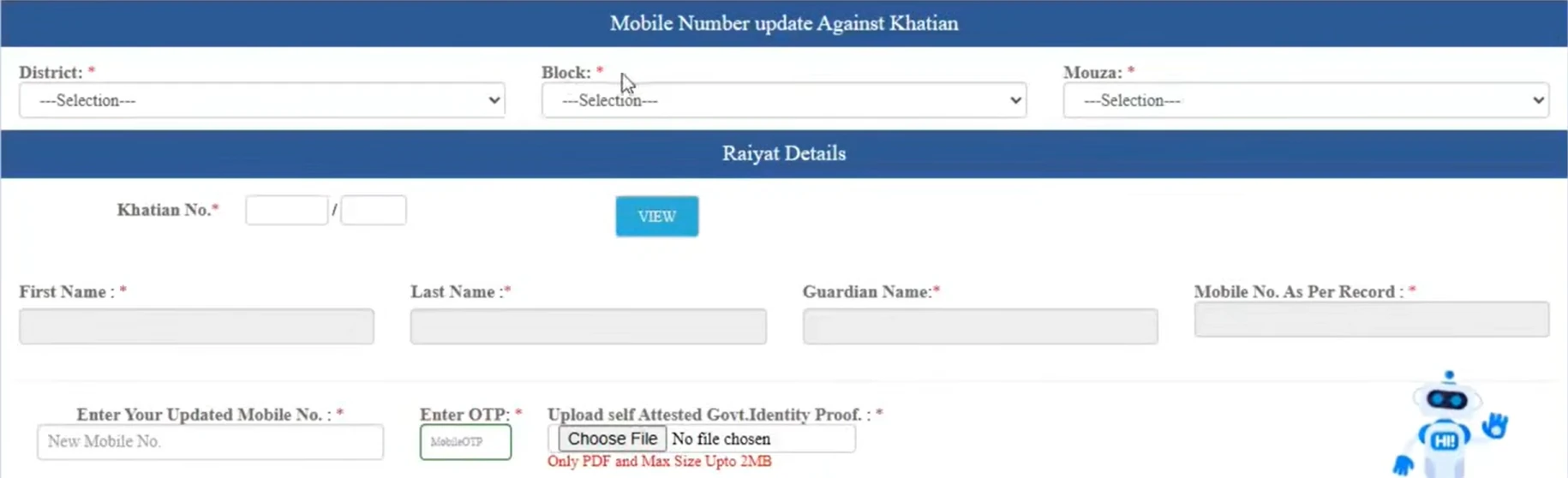
To access Banglarbhumi Mobile Number Update Against Khatian, open the official portal and select Citizen Services → Online Application → Mobile Number update Against Khatian. The reference form asks you to select the land’s location, enter the khatian number, view the Raiyat details and provide an updated mobile number, OTP and self-attested government identity proof.
This guide explains the visible form fields, the checks to make before proceeding and common problems with OTP verification and document uploads. For other services, visit our Banglarbhumi land records guide.
What Is Mobile Number Update Against Khatian?
This service provides a form for updating the mobile number associated with the selected khatian record. The form includes the Raiyat’s details and a field labelled “Mobile No. As Per Record.” Raiyat refers here to the recorded landholder details displayed for the selected record.
Do not assume that updating a mobile number against a khatian also changes your Banglarbhumi account login details. Check the instructions for the particular service you are using. This form should also not be treated as a process for changing the recorded owner’s name or applying for mutation.
Details and Documents to Keep Ready
- Land location: district, block and mouza.
- Khatian number: the number and any applicable slash or bata portion shown in your record.
- Updated mobile number: an active number you can access for verification.
- Government identity proof: a readable, self-attested copy prepared according to the upload instructions.
- Account access: your citizen login details if the portal requires sign-in.
If you need to confirm the land record reference first, follow our Khatian and Plot Information guide. Select the correct mouza because a khatian number alone does not identify the location.
How to Open the Mobile Number Update Form
- Visit the official Banglarbhumi website.
- Select Sign In and log in to your citizen account if prompted.
- Open Citizen Services.
- Expand Online Application.
- Select Mobile Number update Against Khatian.
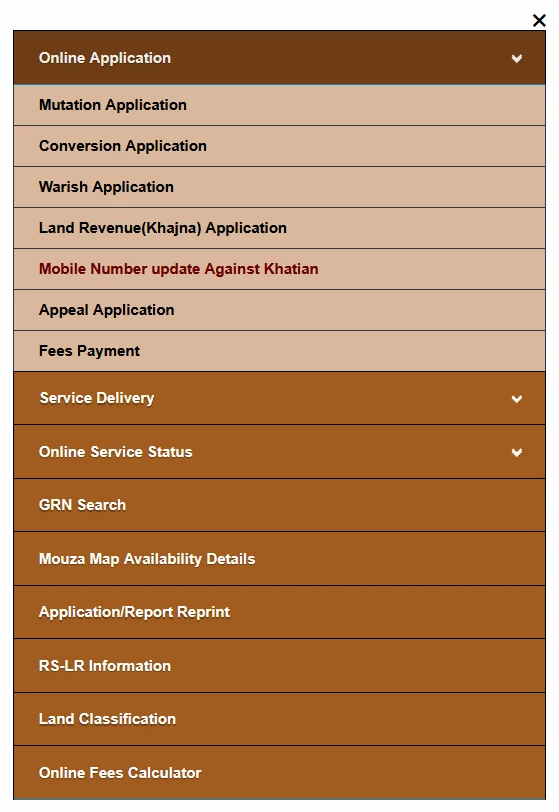
If you need help accessing an account, see our Banglarbhumi Sign Up and Login guide. If you already have an account but cannot remember the password, use the password reset guide.
How to Fill the Khatian Mobile Number Update Form
1. Select District, Block and Mouza
Select the District where the land record is located. Then select the relevant Block and Mouza. Allow each dropdown to load before choosing the next option.
2. Enter the Khatian Number and Select View
Under Raiyat Details, enter the Khatian No. using the fields shown and select View. Enter any applicable slash or bata portion according to your land record and the current form instructions. Do not guess a value or automatically enter “0.”
3. Check the Raiyat Details
Review the details returned for the selected record. The reference form includes fields for First Name, Last Name, Guardian Name and Mobile No. As Per Record.
Make sure these details relate to the intended khatian before proceeding. If an unexpected name or record appears, recheck the location and khatian number. Do not continue with another person’s record.
4. Enter the Updated Mobile Number and Complete OTP Verification
Enter the number in “Enter Your Updated Mobile No.” Check it carefully before completing verification. Follow the OTP instructions displayed on the current form and enter the received code in the Enter OTP field.
The reference screenshot shows the mobile number and OTP fields, but it does not establish the complete OTP-request sequence or whether access to an old number is required. Follow the instructions shown during your own application.
5. Upload the Self-Attested Government Identity Proof
Use the upload field labelled “Upload self Attested Govt. Identity Proof.” The reference screenshot specifies PDF format with a maximum size of 2 MB. Check the current form for any revised requirements before uploading.
6. Review and Complete the Displayed Submission Steps
Check the land record, mobile number and selected document again. Complete any remaining verification and use the submission control displayed on the current page. Read the response carefully and save any acknowledgment or reference number provided.
A completed form or selected file alone does not confirm a successful update. Keep the portal’s confirmation message and follow any further instructions it gives.
How to Prepare the Identity-Proof PDF
- Use an identity document accepted by the current portal instructions. Do not assume that a particular document is compulsory unless specified.
- Prepare the self-attested copy as instructed and scan or photograph it clearly.
- Keep the document edges and relevant details visible. Avoid glare, heavy shadows and blurred text.
- Save or export the document as a genuine PDF. Renaming a JPG file to “.pdf” does not convert it.
- Keep the PDF within the size limit displayed on the form. Reduce image resolution carefully if necessary without making the details unreadable.
- Open the final PDF and check it before selecting it for upload.
Common Problems and What to Check
Khatian Details Do Not Appear
Recheck the district, block, mouza, khatian number and applicable bata portion. Confirm that you selected View after entering the details. If the references are correct but the record remains unavailable, note the portal’s message and seek guidance from the relevant land records office.
Raiyat Name or Existing Mobile Number Looks Wrong
First confirm that the selected khatian and location are correct. If the Raiyat details still do not match your record, resolve the mismatch before proceeding. An unfamiliar existing mobile number does not by itself explain why it is recorded or establish that you can replace it without further verification.
OTP Is Not Received or Is Rejected
Check the entered mobile number, signal and SMS inbox. Follow any waiting period or resend option displayed by the portal. If you request another OTP, use the latest code received. Do not repeatedly request codes or share them with others.
Identity-Proof Upload Fails
Check the file format and size against the current upload instructions. Open the PDF to confirm it is readable and not corrupted. If necessary, create a fresh PDF, use a simple filename and select the file again.
Dropdowns or the Form Stop Responding
Check your connection and any maintenance message on the official portal. Reopen the service or sign in again if the session has expired. You may need to reselect the location and upload the document again after reopening the form.
No Confirmation Appears After Submission
Read any validation message and check for incomplete required fields. Do not assume the request succeeded or immediately submit repeated requests. Keep any reference already issued and follow the portal’s guidance or contact the relevant office if the outcome remains unclear.
Frequently Asked Questions
Where is the Khatian mobile number update option?
Open Citizen Services, expand Online Application and select Mobile Number update Against Khatian on the official Banglarbhumi portal.
What land details does the form ask for?
The reference form asks for district, block, mouza and khatian number. Select View to retrieve the related Raiyat details before proceeding.
What file format is shown for identity-proof upload?
The reference screenshot specifies a self-attested government identity proof in PDF format, up to 2 MB. Follow the latest requirements displayed on the actual form.
Can I update the number if I cannot access the old mobile?
The screenshot does not establish the verification rules for that situation. Check the current form instructions. If you cannot complete the required verification, contact the relevant land records office for the applicable process.
Will this change my Banglarbhumi login mobile number?
Do not assume so. This service is labelled as a mobile number update against khatian. Account login and recovery details should be checked separately.
How much does the update cost and how long does it take?
The available screenshots do not confirm a fee or processing time. Follow any applicable instructions and confirmation messages provided by the official portal.
Related Banglarbhumi Guides
- Khatian and Plot Information
- Citizen Sign Up and Login
- Password Reset
- Land Revenue (Khajna) Application
Official portal: banglarbhumi.gov.in. Banglarbhumi.info is an independent information website. Complete verification and upload identity documents only through the official service.