To reset your Banglarbhumi password, open SIGN IN on the official portal and select FORGET PASSWORD. Choose Citizens for a citizen account, enter your User ID and click Get OTP. Complete the OTP field, enter and confirm your new password, type the current CAPTCHA and click Submit. Read the response to confirm whether the reset succeeded.
Use the official Banglarbhumi portal for account recovery. Our Banglarbhumi land records guide explains related services. Banglarbhumi.info does not reset government accounts or collect passwords and OTPs.
Before starting the password reset
Keep your account’s User ID and access to its registered contact details ready. Use the correct account category: Citizens and Departmental Users are separate selections.
| What you need | What to check |
|---|---|
| User ID | Use the identifier associated with your existing account. Do not assume an unrelated mobile number or email address will identify it. |
| Registered contact access | Be ready to receive the account verification code through the route used by the official service. |
| New password | Choose a unique password that meets the rules displayed by the portal. |
| Current CAPTCHA | Enter the characters shown during your own reset attempt. |
If you have never registered, account recovery is not the correct starting point. Use SIGN UP on the official homepage. If an account already exists, avoid creating a duplicate simply because you have forgotten its password.
Open the FORGET PASSWORD option
- Visit the official Banglarbhumi homepage.
- Select SIGN IN.
- In the login window, select FORGET PASSWORD.
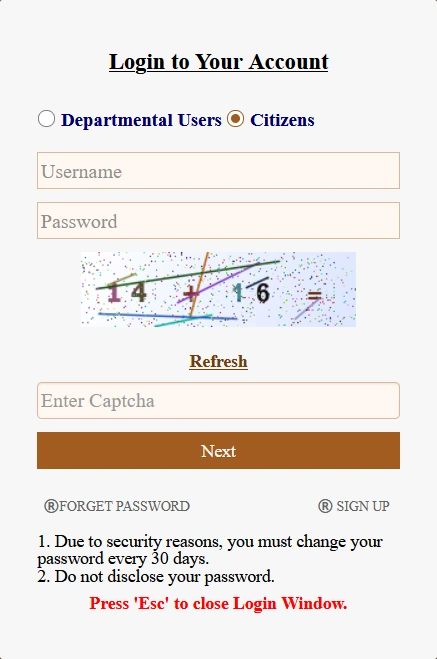
The portal spells the link FORGET PASSWORD. It opens the recovery form described below. A forgotten-password reset is different from changing a password while already signed in.
How to reset your Banglarbhumi password
1. Select the account category. Choose Citizens for a citizen account. Departmental users should use the category appropriate to their official account.
2. Enter your User ID. Copy the identifier associated with your account carefully. Check for missing characters and extra spaces. If you cannot identify the correct User ID, consult your saved registration information or seek official account assistance.
3. Click Get OTP. Read any message returned by the portal. Confirm that the request was accepted rather than assuming that clicking the button guarantees delivery.
4. Complete Enter OTP. Enter the valid verification code received for this recovery attempt. Follow the portal’s delivery, expiry and resend instructions. If several codes arrive, use the latest valid code associated with the current request.
5. Enter a new password. Use the Enter New Password field and follow the password requirements shown by the service. Avoid reusing a password from another account.
6. Confirm the new password. Enter the same value in Confirm New Password. Check keyboard settings and accidental spaces if the entries do not match.
7. Enter the CAPTCHA. Type the characters currently displayed. Select Refresh if the image is unclear and use the newly displayed characters. The CAPTCHA in the example screenshot cannot be reused.
8. Click Submit and read the response. Complete any further instructions or correct the stated validation error. A closed window or refreshed page alone does not establish that the password changed successfully.
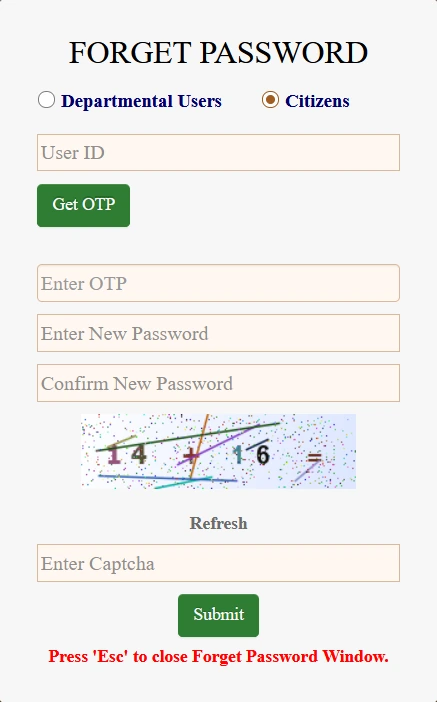
The pictured form also states that Esc closes the recovery window. Closing it is not a substitute for submitting the reset and checking the result.
Sign in after a successful reset
- Return to the official homepage and open SIGN IN.
- Select Citizens for a citizen account.
- Enter your account Username and the new password.
- Complete the current CAPTCHA.
- Click Next and follow any further access instructions.
If your browser fills in the old password automatically, replace it with the new one. Update any saved password only after confirming that the reset succeeded.
The login window displays a notice about changing the password every 30 days. Follow any password-change instruction presented for your account; do not confuse that notice with an OTP expiry period.
OTP not received or rejected
- Check that the correct account category and User ID were entered.
- Read the response after Get OTP for an error or further instruction.
- Check access to the contact channel registered for the account and any relevant delivery or network issue.
- Follow any displayed resend control or waiting period rather than repeatedly clicking Get OTP.
- Use the current code without extra spaces and follow the portal’s validity instructions.
The screenshot does not state an OTP expiry duration or resend interval. Follow the values displayed during your actual attempt rather than assuming a fixed number of minutes.
What if the registered mobile number is unavailable?
If you cannot access the contact used for verification, seek assistance through the account-support or contact information published on the official portal. Keep your User ID and registration details available for the verification requested by the responsible authority.
Do not assume that entering another person’s mobile number, creating a duplicate account or skipping OTP will recover the existing account. Never share a password or OTP in a public comment or with someone offering an unofficial reset.
Common reset problems and practical checks
| Problem | What to check |
|---|---|
| User ID is not accepted | Check the account category and saved identifier. Do not substitute an unrelated contact detail. |
| OTP does not arrive | Check the request response, registered contact access and any displayed delivery or resend instructions. |
| OTP is invalid or expired | Use the latest valid code for the current attempt and follow the portal’s instructions for requesting another. |
| New passwords do not match | Check both entries, accidental spaces and keyboard settings. |
| Password format is rejected | Follow the exact validation rule shown by the portal. |
| CAPTCHA is rejected | Refresh it and enter the newly displayed characters. |
| Page fails or session expires | Return to the official homepage and reopen recovery. Check whether the previous attempt produced a confirmation. |
| Login fails after reset | Confirm the account category, Username, new password and fresh CAPTCHA. Check whether autofill inserted the old password. |
Keep your recovered account secure
- Use a unique password that meets the portal’s requirements.
- Keep passwords and verification codes private.
- Store account details securely and maintain access to registered contacts.
- Log out after using a shared device.
- Avoid saving passwords in a browser used by other people.
What to do after signing in
Return to the service relevant to your task. Our Citizen Services guide explains the available service groups. For property-record searches, see the Khatian and Plot Information guide.
Resetting your account password does not itself change a land record, submit an application or approve a pending request.
Frequently asked questions
Where is the Banglarbhumi password reset option?
Open SIGN IN on the official homepage and select FORGET PASSWORD in the login window.
What should a citizen select on the recovery form?
Select Citizens for a citizen account. Departmental Users is a separate account category.
Is the User ID always my mobile number?
Use the identifier associated with your account. The pictured recovery field is labelled User ID; do not assume any mobile number will identify the account.
Can I reset without receiving the required OTP?
Complete the verification required by the official service. If the registered contact is inaccessible, seek official account assistance.
What password length should I use?
Follow the rules displayed by the portal. The supplied screenshot does not specify a minimum length or complete password pattern.
Why does the old password still appear after resetting?
Your browser or password manager may retain the previous value. Enter the new password and update the saved entry after confirming success.
Does clicking Submit confirm a successful reset?
No. Read the response and complete any further instruction or correction before assuming the change succeeded.
Official account-recovery portal
Use the official Banglarbhumi website for password recovery and account instructions. Banglarbhumi.info provides independent guidance and cannot access or recover individual government accounts.