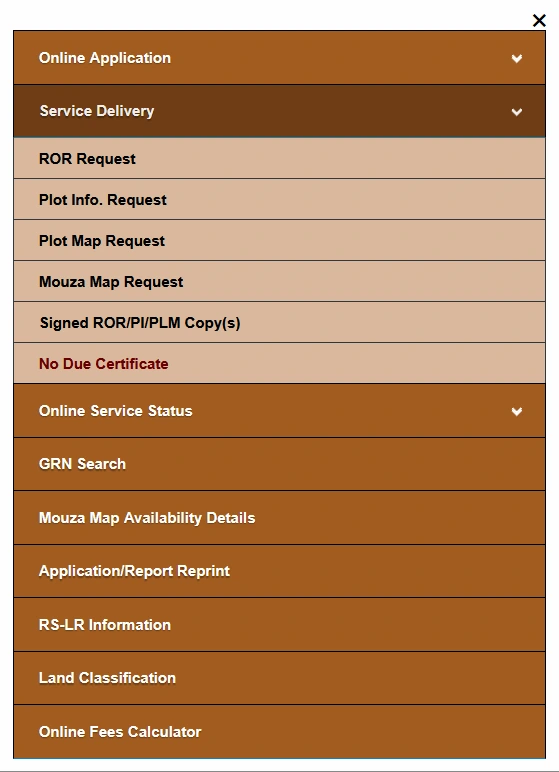
Banglarbhumi No Due Certificate is a service for looking up a no due certificate in respect of land revenue. You can open it through Citizen Services → Service Delivery → No Due Certificate on the official Banglarbhumi portal. The reference forms shown below offer searches using either an Application No. or a Khatian No.
This guide explains how to open the service, choose a search method, enter the relevant details and handle common lookup problems. For other West Bengal land record services, visit our Banglarbhumi land records guide.
What Is the Banglarbhumi No Due Certificate?
The service page is titled “No Due Certificate in Respect of Land Revenue.” It concerns land revenue dues associated with the relevant land record. It should not be confused with a bank loan clearance certificate or a general clearance of every liability connected with a property.
The screenshots in this guide show the lookup forms. They do not show a completed certificate or confirm that a certificate will be available for every application or khatian.
Details to Keep Ready
- Application-number search: the relevant application number.
- Khatian-number search: district, block, mouza and khatian number.
- Bata Khatian: the subdivision reference, where applicable to your record.
- Account access: your Banglarbhumi sign-in details if the portal requires login.
- Payment reference: your land revenue receipt and payment references if you need to investigate a payment-related problem.
If you need to check the location or khatian reference first, see our Banglarbhumi Khatian and Plot Information guide. The same khatian number can occur in different mouzas, so selecting the correct location matters.
How to Open No Due Certificate on Banglarbhumi
- Visit the official Banglarbhumi portal.
- Use Sign In and log in to your citizen account if prompted.
- Open Citizen Services.
- Expand Service Delivery.
- Select No Due Certificate.
- Choose the lookup method suitable for the details you have.
Search by Application Number
Use this method when you have the application reference relevant to the land revenue service.
- Select Application No. under “No Due Certificate From.”
- Enter the relevant number in the Application No. field.
- Enter the characters displayed in the current CAPTCHA image. Use the refresh icon if you cannot read them.
- Click Submit.
- Read the result or message returned by the portal and follow any instructions displayed.
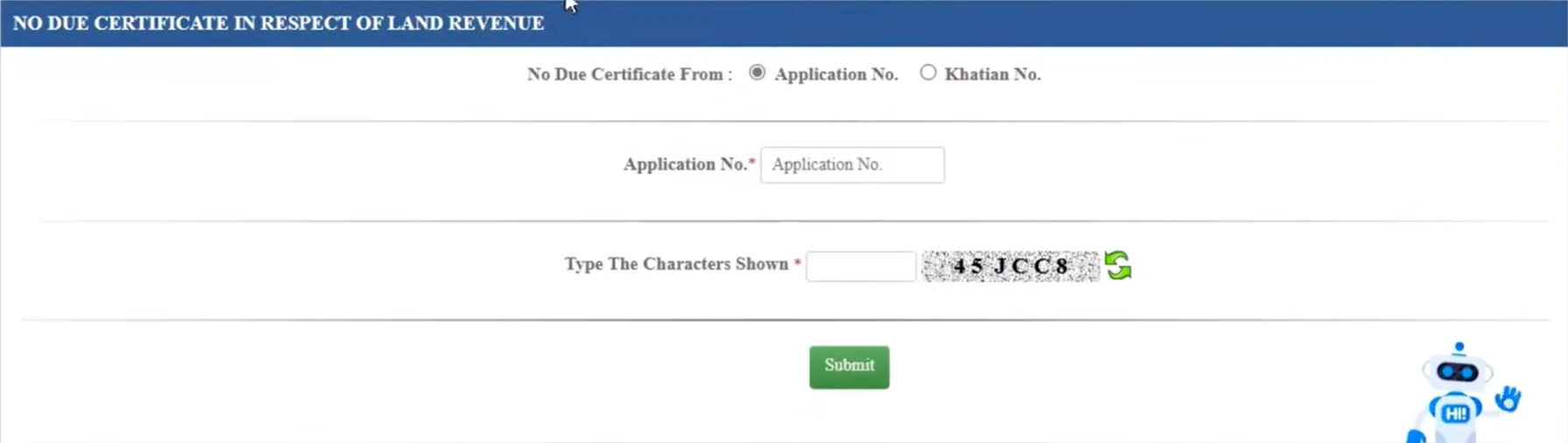
Application number and GRN are different references. Do not enter a bank transaction ID or GRN in the Application No. field unless the portal specifically instructs you to do so. For payment verification, refer to our Banglarbhumi GRN Search guide.
Search by Khatian Number
The khatian search offers an alternative when you have the land record details. In the reference screenshot, selecting this option displays location dropdowns and khatian fields.
- Select Khatian No. under “No Due Certificate From.”
- Choose the correct District.
- Select the relevant Block.
- Choose the Mouza where the land record is located.
- Enter the Khatian No. exactly as recorded.
- Complete the Bata Khatian field where applicable, following your record and the portal’s instructions.
- Complete any verification and submission steps displayed on the current form.
- Review the result or message returned by the portal.
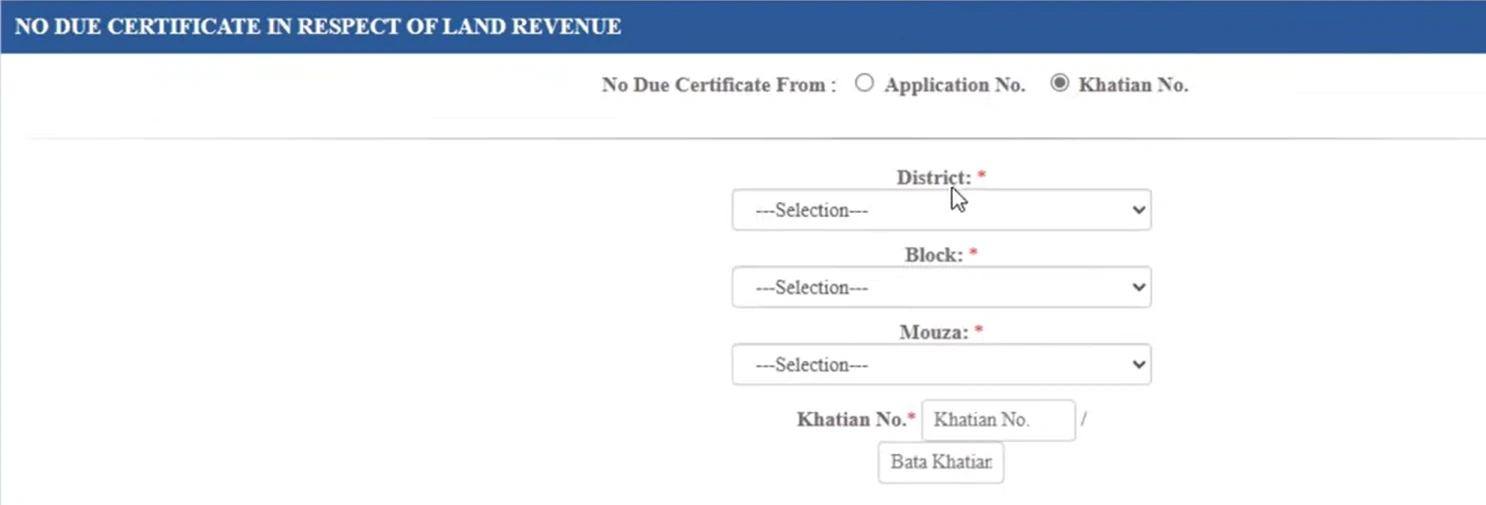
What Should You Enter in Bata Khatian?
Use the bata or subdivision reference shown in your land record, where applicable. Do not guess a value or automatically enter “0.” If your record has no bata reference and the form requires an entry, follow the on-screen guidance or contact the relevant land records office for clarification.
How to Save an Available Certificate
If the lookup returns a certificate with a download or print option, open it and check that it relates to the intended land record before saving it. Review the location, reference details and any period or date stated on the document.
Use the download or print control actually provided by the portal. A screenshot of the lookup form or a payment-success message is not a substitute for the certificate itself. If the portal returns only a message, follow that message rather than assuming that a certificate has been issued.
No Due Certificate vs Khajna Payment Receipt
A Khajna payment receipt records a particular land revenue payment. A No Due Certificate addresses the land revenue dues position stated in the certificate. Keep these documents separately and use the document requested by the receiving office.
If you still need to make or check a land revenue payment, read our Banglarbhumi Land Revenue (Khajna) Application guide. Completing a payment does not by itself confirm that a certificate is ready to download.
Common Problems and What to Check
No Record or Certificate Is Found
Check the application number for typing errors. For khatian searches, verify the district, block, mouza, khatian number and applicable bata reference. A “no record” result alone does not establish whether land revenue is outstanding.
Payment Was Made but the Expected Result Is Missing
Check the official payment status and confirm that the payment relates to the correct land record and relevant demand or period. Keep the receipt, application reference and GRN available. Avoid making another payment solely because the certificate lookup failed; first establish the status of the original transaction.
CAPTCHA Is Rejected
Enter the CAPTCHA currently displayed on your own screen. Refresh it if necessary and complete the verification again. The characters shown in an article screenshot are only part of that example.
Block or Mouza Dropdown Does Not Load
Select the location in order: district, then block, then mouza. Allow each list to load before moving to the next field. If it remains unresponsive, reopen the service and check whether the portal displays a maintenance notice or asks you to sign in again.
Land Record or Dues Details Appear Incorrect
Compare the result with your land record and payment receipts. If a mismatch remains, contact the relevant land and land reforms office with those references. Never share your password or OTP when seeking assistance.
Frequently Asked Questions
Where is the No Due Certificate option?
Open Citizen Services on the official Banglarbhumi portal, expand Service Delivery and select No Due Certificate. Sign in if the portal prompts you.
Can I search without an application number?
The reference form also offers a Khatian No. search. This method asks for the district, block, mouza and khatian details. Availability of a certificate depends on the result returned by the portal.
Does this form create a new land revenue application?
The forms illustrated here are reference-based lookup forms. For the land revenue application and payment process, use the separate Land Revenue (Khajna) Application service.
Is the No Due Certificate the same as a Khajna receipt?
No. A receipt records a payment, while the certificate concerns the land revenue dues position stated in that document. Check which document the receiving office requires.
What is the fee or validity period?
The screenshots do not establish a fee or validity period. Follow any applicable instructions shown on the official portal and check the issued certificate for its stated scope, period and dates.
Related Banglarbhumi Guides
- Banglarbhumi land records and citizen services
- Land Revenue (Khajna) Application
- GRN Search and payment verification
- Khatian and Plot Information
Official service: banglarbhumi.gov.in. Banglarbhumi.info is an independent information website. Enter account details and complete service requests only on the official portal.