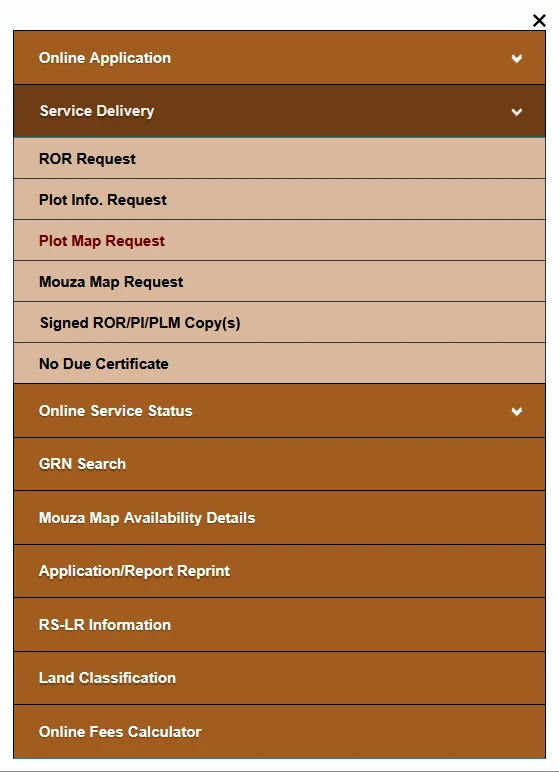
To apply for a Banglarbhumi Plot Map Request, open Citizen Services → Service Delivery → Plot Map Request on the official portal. Select the district, block and mouza, enter the plot number and applicant details, complete the CAPTCHA and select Calculate Fee. Review the calculated amount and follow the payment and delivery instructions displayed for your request.
This guide explains the request form, the details to keep ready, payment checks and common problems. For other West Bengal land-record services, visit our Banglarbhumi land records guide.
What Is Banglarbhumi Plot Map Request?
Plot Map Request is a service for requesting a map relating to a specified plot through the Banglarbhumi portal. It is listed under Service Delivery, alongside separate options for ROR, plot information and mouza map requests.
Before applying, decide whether you need to check land-record information or request a map document. These services have different purposes.
| Service | Purpose |
|---|---|
| Know Your Property / Plot Information search | Look up available land-record details for a plot. |
| Plot Info. Request | Request a plot-information document. |
| Plot Map Request | Request a map relating to a specified plot. |
| Mouza Map Request | Request a mouza map using the location, map type and sheet details required by that service. |
If you need a mouza map, follow our separate Mouza Map Application guide.
Details Required for a Plot Map Request
Keep the following information ready before opening the request form:
- District, block and mouza: The location of the plot for which you need the map.
- Plot number: Copy the number carefully from the relevant land record.
- Applicant name: First name and last name, as applicable.
- Guardian details: The appropriate relationship option and guardian name requested by the form.
- Address: The applicant’s address.
- Portal account details: To sign in if prompted.
If you do not know the plot number, start with our Khatian and Plot Information guide. Confirm that the district, block and mouza match your land records before using the number in a map request.
How to Open Plot Map Request
- Visit the official Banglarbhumi portal.
- Select Citizen Services.
- Expand Service Delivery.
- Select Plot Map Request.
- Sign in if the portal asks you to authenticate, then continue to the request form.
How to Fill the Plot Map Request Form
The form below shows the location, plot and applicant fields, followed by the CAPTCHA and Calculate Fee button.
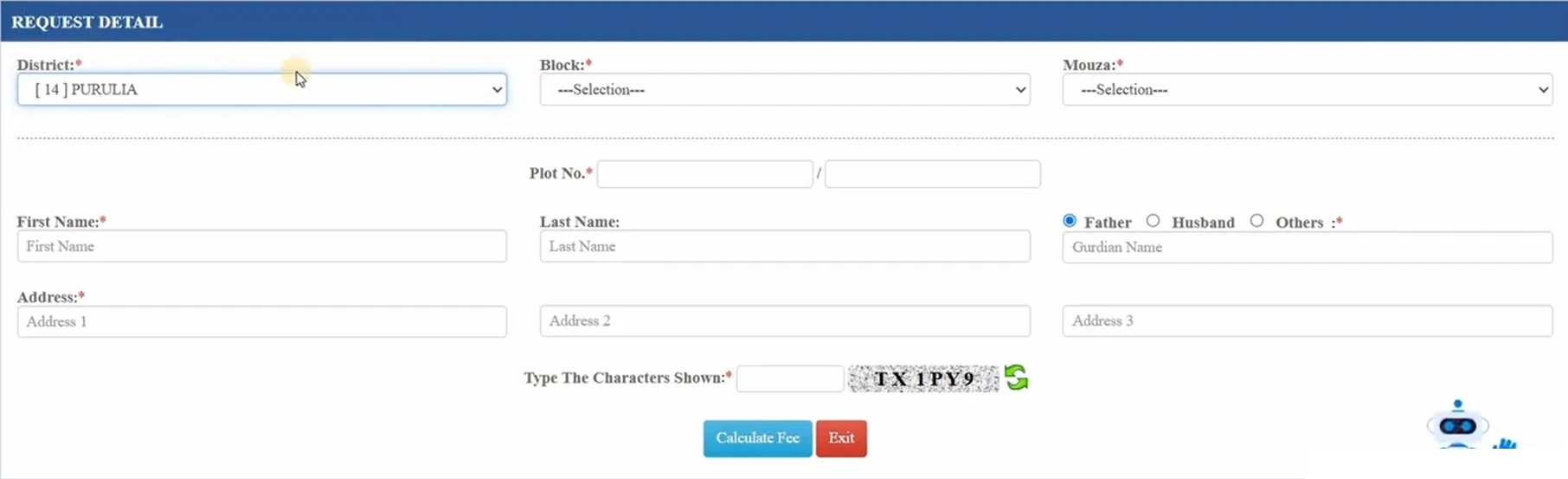
- Select District: Choose the district where the plot is located.
- Select Block: Wait for the block list to load and choose the correct block.
- Select Mouza: Choose the mouza corresponding to your land record.
- Enter Plot No.: Enter the plot number in the provided field or fields. The illustrated form has two boxes separated by a slash. Follow the number format in your record and the portal’s validation instructions.
- Enter the applicant’s name: Complete the first-name field and last name where applicable.
- Complete guardian details: Select the appropriate Father, Husband or Others option and enter the requested name.
- Enter the address: Fill the address fields accurately.
- Complete the CAPTCHA: Enter the characters displayed in your current session. Refresh the CAPTCHA if it is unreadable.
- Select Calculate Fee: Read any validation message, correct the details if necessary and review the calculated amount.
Before continuing: Check the location and plot number again. The same plot number may occur in different mouzas, so the number alone is not enough to identify the correct land-record location.
RS and LR Plot Number Confusion
Your older documents and other land records may use different plot-number references. If you are unsure which number relates to the record you need, compare your papers with the available official record information before submitting the request.
Our RS–LR Plot Information guide explains the corresponding lookup service. Check the relationship between the numbers for the selected location rather than assuming that the RS and LR numbers are identical.
Plot Map Request Fee and Payment
Use the amount calculated by the official portal for your request. A fee shown in an older tutorial does not confirm the amount payable for a new application.
- Review the amount displayed after selecting Calculate Fee.
- Check the request details and follow the payment option offered by the portal.
- If redirected to the government payment service, verify the department reference and amount before paying.
- Save the application or request number, payment receipt and GRN or transaction reference where issued.
- Return to Banglarbhumi as instructed and check the request or payment confirmation.
The National Informatics Centre’s West Bengal project information describes Banglarbhumi’s plot-map services and integration with the West Bengal government payment portal. Follow the payment options and subsequent instructions displayed for your own request.
Money Debited but No Confirmation?
If money has been debited but the portal has not confirmed the payment, first check the official payment status. Avoid paying again until you have checked the existing transaction.
- Keep the bank transaction reference, payment date and amount.
- Save the GRN and application or department reference where available.
- Read the payment-reconciliation instructions displayed by the portal.
- Use the applicable official GRN Search option with the references it requests.
- If the status remains unclear, contact the support channel shown on the official portal or payment service with the relevant references.
Read our Banglarbhumi GRN Search guide for help understanding the reference-search process. A bank debit alone does not confirm that the map request has been successfully registered.
What to Do After Submitting the Request
Save the acknowledgement and follow the delivery or retrieval instructions provided for your request. Keep the application reference separate from the bank transaction number so you can supply the correct reference during follow-up.
The Service Delivery menu also lists Signed ROR/PI/PLM Copy(s). Follow the instructions for the applicable copy service if the portal directs you there. Calculating a fee or completing payment does not, by itself, establish that the map is ready for download.
When a map is delivered, compare its location and plot reference with your request. If it appears incorrect or remains unavailable, retain the acknowledgement and contact the relevant official support channel or land records office.
Common Problems and Useful Checks
Block or mouza list does not load
Wait for the previous selection to finish loading. Recheck the district and block, then retry. If your session has expired, return to the official homepage, sign in if required and reopen the service.
Plot number is not accepted
Compare the entry with your record, including any slash-separated part. Check the district, block and mouza. Follow the portal’s validation message rather than adding digits or changing the number to force acceptance.
CAPTCHA error appears
Refresh the CAPTCHA and enter the newly displayed characters. The CAPTCHA in the example image will not work for your session.
Calculate Fee does not proceed
Check the fields marked with an asterisk, the selected location, plot number and CAPTCHA. Read any message displayed beside the form. If the page stops responding, retry through a fresh session before starting a payment.
A document or payment page does not open
Check whether your browser blocked a new tab or download from the official service. Try an updated browser if necessary. Save your request references before closing the session.
Frequently Asked Questions
Where is Plot Map Request in Banglarbhumi?
Open Citizen Services, expand Service Delivery and select Plot Map Request.
Is Plot Map Request the same as Mouza Map Request?
No. They are separate menu options. Plot Map Request uses a specified plot number, while Mouza Map Request asks for the location, map type and sheet details required by that service.
Can I use a khatian number instead of a plot number?
The illustrated Plot Map Request form asks for a plot number. If you only have a khatian number, first use the relevant property-search service to identify the associated plot details.
Do I need to sign in?
Sign in with your citizen account when the official portal prompts you. Open the request through the official homepage if a saved service link does not work.
What is the fee for a plot map request?
Complete the required fields and select Calculate Fee to check the amount displayed for your request. Review it before payment.
Can I download the map immediately after payment?
Follow the delivery instructions and availability shown for your request. Payment confirmation and document availability are separate checks; do not assume an immediate download.
Official Portal and Source
- Banglarbhumi official portal — applications, payments and available document services.
- NIC West Bengal project information — information about Banglarbhumi and its land-record services.
Banglarbhumi.info is an independent informational website. Official map requests, payments and document delivery are handled through the government portal and the concerned department.